

The file system module in Node.js, commonly known as fs, allows developers to interact with the file system on their computer or server. In this article, we will explore the file system module in Node.js and learn how to perform common file operations such as reading, writing, updating, and deleting files.
What is Node.js File System Module?
The file system module in Node.js provides an API for working with the file system. It provides methods for creating, reading, updating, and deleting files and directories. The file system module is included in the core Node.js library, so there is no need to install any additional modules.
To use the file system module, we need to import it into our Node.js application using the required function. Here is an example of importing the file system module:
const fs = require('fs');
The fs variable now contains all the methods provided by the file system module.
Basic File Operations
1. Reading Files:
To read the contents of a file, we can use the ‘fs.readFile()’ method. It takes two parameters: the path to the file and a callback function that handles the result.
const fs = require('fs');

fs.readFile('path/to/file.txt', 'utf8', (err, data) => {
  if (err) {
    console.error(err);
    return;
  }
  console.log(data);
});
Use Case:
Reading the contents of a file for further processing or displaying the data.
Parameters:
- Path: The path to the file to be read.
- Options: An optional parameter that specifies the encoding, such as ‘utf8’, to read the file as a specific character encoding.
- Callback Function: A callback function that handles the result or any error that occurs during the reading process.
2. Writing Files:
To write data to a file, we can use the ‘fs.writeFile()’ method. It takes three parameters: the path to the file, the data to be written, and a callback function to handle any errors.
const fs = require('fs');

const data = 'Hello, World!';

fs.writeFile('path/to/file.txt', data, (err) => {
  if (err) {
    console.error(err);
    return;
  }
  console.log('Data written successfully!');
});
Use Case:
Creating a new file or overwriting the contents of an existing file with new data.
Parameters:
- Path: The path to the file to be written.
- Data: The data to be written to the file.
- Callback Function: A callback function that handles any error that occurs during the writing process.
3. Updating Files:
To update the contents of a file, we can use the ‘fs.appendFile()’ method. It appends data to the end of a file. It takes three parameters: the path to the file, the data to be appended, and a callback function.
const fs = require('fs');

const newData = '\nThis is new data!';

fs.appendFile('path/to/file.txt', newData, (err) => {
  if (err) {
    console.error(err);
    return;
  }
  console.log('Data appended successfully!');
});
Use Case:
Appending new data to the existing contents of a file.
Parameters:
- Path: The path to the file to be updated.
- Data: The data to be appended to the file.
- Callback Function: A callback function that handles any error that occurs during the updating process.
4. Deleting Files:
To delete a file, we can use the fs.unlink() method. It takes the path to the file and a callback function.
const fs = require('fs');

fs.unlink('path/to/file.txt', (err) => {
  if (err) {
    console.error(err);
    return;
  }
  console.log('File deleted successfully!');
});
Use Case:
Removing a file from the file system.
Parameters:
- Path: The path to the file to be deleted.
- Callback Function: A callback function that handles any error that occurs during the deletion process.
5. Creating Files:
To create a file in Node.js, we can use the fs.writeFile() method. This method takes the path to the file, the data to be written, and a callback function to handle any errors.
const fs = require('fs');

const data = 'Hello, World!';

fs.writeFile('path/to/file.txt', data, (err) => {
  if (err) {
    console.error(err);
    return;
  }
  console.log('File created successfully!');
});
Use Case:
Creating a new file in the file system.
Parameters:
- Path: The path to the file to be created.
- Callback Function: A callback function that handles any error that occurs during the creation process.
6. Renaming Files:
To rename a file in Node.js, we can use the fs.rename() method. This method takes the current path of the file and the new path (including the new filename), and a callback function to handle any errors.
const fs = require('fs');

const currentPath = 'path/to/file.txt';
const newPath = 'path/to/renamed_file.txt';

fs.rename(currentPath, newPath, (err) => {
  if (err) {
    console.error(err);
    return;
  }
  console.log('File renamed successfully!');
});
Use Case:
Changing the name or moving a file to a new location in the file system.
Parameters:
- Current Path: The current path (including the filename) of the file to be renamed.
- New Path: The new path (including the new filename) for the renamed file.
- Callback Function: A callback function that handles any error that occurs during the renaming process.
Handling Directories:
1. Creating Directories:
To create a new directory, we can use the ‘fs.mkdir()’ method. It takes the path to the directory and a callback function.
const fs = require('fs');

fs.mkdir('path/to/directory', (err) => {
  if (err) {
    console.error(err);
    return;
  }
  console.log('Directory created successfully!');
});
2. Removing Directories:
To remove an empty directory, we can use the fs.rmdir() method. It takes the path to the directory and a callback function.
const fs = require('fs');

fs.rmdir('path/to/directory', (err) => {
  if (err) {
    console.error(err);
    return;
  }
  console.log('Directory removed successfully!');
});
Synchronous and Asynchronous approach in the file system:
In Node.js, there are two approaches to file system operations: synchronous and asynchronous.
Synchronous Approach:
In synchronous operations, the code execution will block until the operation is completed. This means that the application will not continue to execute any other code until the file operation is finished. The synchronous approach is suitable for small file operations where you don’t want the code execution to continue until the operation is completed.
Example of Synchronous Approach for Reading Files:
const fs = require('fs');

try {
  const data = fs.readFileSync('path/to/file.txt', 'utf8');
  console.log(data);
} catch (err) {
  console.error(err);
}
Example of Synchronous Approach for Writing Files:
const fs = require('fs');

const data = 'Hello, World!';

try {
  fs.writeFileSync('path/to/file.txt', data);
  console.log('Data written successfully!');
} catch (err) {
  console.error(err);
}
Asynchronous Approach:
In asynchronous operations, the code execution will not block, and the application will continue to execute other code while the file operation is in progress. The asynchronous approach is suitable for large file operations where you don’t want the code execution to wait until the operation is completed.
Example of Asynchronous Approach for Reading Files:
const fs = require('fs');

fs.readFile('path/to/file.txt', 'utf8', (err, data) => {
  if (err) {
    console.error(err);
    return;
  }
  console.log(data);
});
Example of Asynchronous Approach for Writing Files:
const fs = require('fs');

const data = 'Hello, World!';

fs.writeFile('path/to/file.txt', data, (err) => {
  if (err) {
    console.error(err);
    return;
  }
  console.log('Data written successfully!');
});
In both approaches, the code handles errors using a try-catch or a callback function. However, in the asynchronous approach, we pass a callback function that handles errors and the result of the file operation. The callback function is called when the file operation is completed, or an error occurs.
The synchronous approach blocks the code execution until the file operation is finished, while the asynchronous approach continues the code execution while the file operation is in progress. It is essential to choose the right approach based on the size of the file operation and the application’s requirements.
Node.js Flags for Read/Write:

These are some of the following flags for read/write operation
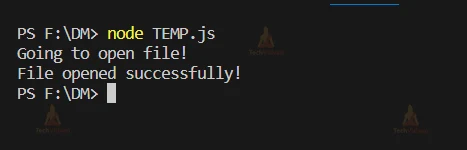
var fs = require("fs");
// Asynchronous - Opening File
console.log("Going to open file!");
fs.open('input.txt', 'r+', function(err, fd) {
   if (err) {
       return console.error(err);
   }
  console.log("File opened successfully!");
});
var fs = require("fs");
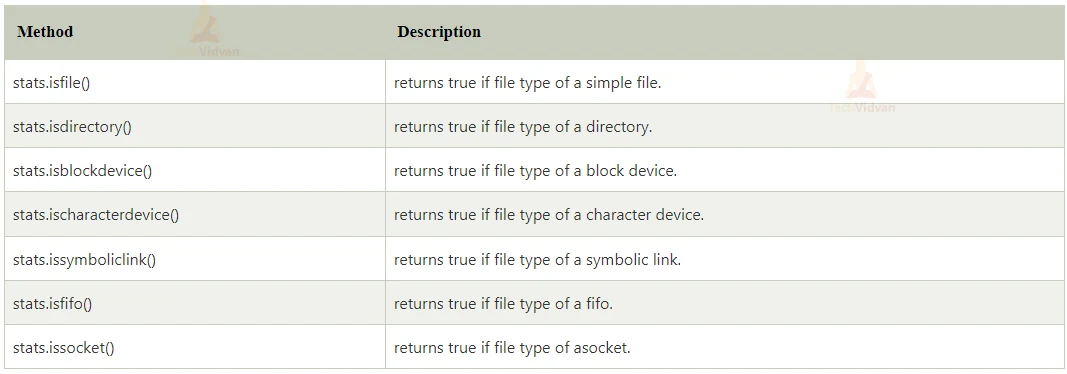
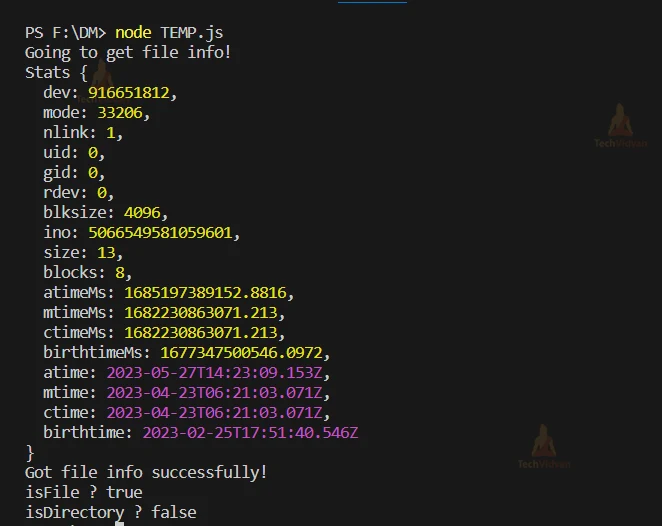
console.log("Going to get file info!");
fs.stat('input.txt', function (err, stats) {
   if (err) {
       return console.error(err);
   }
   console.log(stats);
   console.log("Got file info successfully!");
   // Check file type
   console.log("isFile ? " + stats.isFile());
   console.log("isDirectory ? " + stats.isDirectory());
});
Conclusion
The file system module in Node.js provides a robust set of features for working with files and directories.