



In this article, we will proceed with Android Preferences and Shared Preferences. Like any other android storage, android preferences and shared preferences are also used to store application data. What makes the android preference and shared preference storage different from others is the storing pattern. In Android and Shared Preference, data is stored in the form of key-value pairs.
We will try to cover every aspect of Android Preference and Shared Preference through this article and demonstrate the same.
Preferences in Android
Preferences in Android are key-value pairs used to store user’s data with the flow of the application. The data exists even after closing the application. However, the data gets removed when the user uninstalls or clears app data. Preferences are usually used to store data of small size.
Preferences are pretty helpful while storing user details on the go. Suppose someone installed your application, and you want them to fill in their details before using the application. Now, these details like name, mobile number, address can be stored in the preferences and shown to the user whenever required.
Usually, preferences support only primitive data types like as follows:
- Boolean Types
- Integer Types
- Float Types
- String Types
- Long Types
Note: While storing data in preferences, you should ensure a unique key is assigned for each value. This key is later on used to fetch the data from the preferences.
APIs involved in accessing Preferences
Currently, we have three kinds of APIs that can be used to access preferences in any android application. These are:
1. getPreference() – The getPreference() method is used to access preferences that are specific to a single activity. This method retrieves the SharedPreferences object associated with the activity, allowing you to read or modify settings that are unique to that particular activity. This is useful for storing and managing preferences that are relevant only to the current activity’s lifecycle.
2. getSharedPreference() – The getSharedPreferences() method provides access to application-level preferences that can be shared across multiple activities within the same application. By specifying a unique name and mode, you can access a SharedPreferences instance that allows reading and writing data that is consistent across different activities and even different contexts within the application.
3. getDefaultSharedPreference() – The getDefaultSharedPreferences() method returns the default SharedPreferences instance used by the Android preference framework. This instance is shared across all activities and fragments within the application, providing a common storage area for preferences. It simplifies access to default preferences without requiring you to create and manage multiple SharedPreferences instances manually.
Shared Preferences in Android
Shared Preferences, as the name suggests, is a storage that is shared throughout your application. It implies that the key-value pairs stored as preferences are available to all the activities, fragments, and other application contexts present within the app. Shared Preferences of one app are limited to that app only, and other apps can’t access it.
To use Shared Preferences in a particular activity, we first need to get the instance of it. To get an example of it, we use the getSharedPreference() method as shown below.
Code:
var sharedPrefObj: SharedPreferences? = null
sharedPrefObj = getSharedPreferences("yourData", MODE_PRIVATE)
We supplied two parameters to the procedure above: the name of the Shared Preference and the mode. The mode is set to Private by default. Instead of private, you have five distinct settings to choose from.
| Mode Name | Description |
| MODE_APPEND | It is used to append new changes or new preferences to the existing preferences. |
| MODE_ENABLE_WRITE_AHEAD _LOGGING | It is used to maintain database consistency. It enables write-ahead logging that means that the changes are done locally before finally updating the database. |
| MODE_WORLD_READABLE | Using this mode, you can only read values from the preference and can’t write to it. |
| MODE_WORLD_WRITABLE | Using this mode, you can write data to the preference. |
| MODE_MULTI_PROCESS | It is used when multiple processes try to access or modify the shared preferences at a time. |
| MODE_PRIVATE | It is the default mode of shared preference and allows you to access files only when called. |
Methods in Shared Preferences in Android
There are several methods involved in Shared Preferences that help us write, update and delete data in a shared preference.
| Method Name | Description |
| contains(key : String) | The contains() method takes the key of your data and then returns whether the key is present in the preferences. |
| edit() | The edit() method is called by the SharedPreferences Editor to modify the existing data and then commit the changes back to preferences. |
| getAll() | The getAll() provides us all the values present in the Shared Preferences. |
| getBoolean(key :String, defValue : Boolean) | The getBoolean() method is used to get a boolean value corresponding to the key provided. If the key mismatches or if no value is found, then it returns the defValue. |
| getString(key :String, defValue : String) | The getString() method is used to get a String value corresponding to the key provided. If the key mismatches or if no value is found, then it returns the defValue. |
| getInt(key :String, defValue : Int) | The getInt() method is used to get an int value corresponding to the key provided. If the key mismatches or if no value is found, then it returns the defValue. |
| getFloat(key :String, defValue : Float) | The getFloat() method is used to get a float value corresponding to the key provided. If the key mismatches or if no value is found, then it returns the defValue. |
| getDouble(key :String, defValue : Double) | The getDouble() method is used to get a double value corresponding to the key provided. If the key mismatches or if no value is found, then it returns the defValue. |
| getLong(key :String, defValue : Long) | The getLong() method is used to get a long value corresponding to the key provided. If the key mismatches or if no value is found, then it returns the defValue. |
Preferences vs SharedPreferences in Android
Let us now understand how preferences are different from Shared Preferences.
| Preferences | Shared Preferences |
| Preferences store data in implementation-dependent backing stores. | Shared Preferences store data in XML files. |
| Preferences data are highly encrypted and don’t undergo any changes when the device is rebooted. | Shared Preferences data is not that highly encrypted and is subjected to change when the device restarts. |
| Preferences are a better option for sensitive data. | Shared Preferences are not so good for sensitive data. |
| Preferences instance is created by the following: | Shared Preferences is created by the following: |
Implementation of Shared Preferences in Android
I hope you got some idea about Shared Preferences and what its use is in android. Now, it’s time for us to see a detailed implementation of Shared Preference in Android.
We will be developing a straightforward app where I will be storing the name and mobile number of the user in Shared Preference and then close the app and see if the data still exists in the preference or not.
Step 1: Start your Android Studio and create a new project called “TechVidvanSharedPref.”
Step 2: Now locate your activity_main.xml file and paste the below code there.
Code: activity_main.xml
<?xml version="1.0" encoding="utf-8"?>
<LinearLayout
    xmlns:android="http://schemas.android.com/apk/res/android"
    xmlns:app="http://schemas.android.com/apk/res-auto"
    xmlns:tools="http://schemas.android.com/tools"
    android:layout_width="match_parent"
    android:layout_height="match_parent"
    android:orientation="vertical"
    tools:context=".MainActivity">

   <TextView
       android:id="@+id/title"
       android:layout_width="match_parent"
       android:layout_height="wrap_content"
       android:layout_marginTop="20dp"
       android:text="TechVidvan"
       android:textSize="40sp"
       android:gravity="center"
       android:layout_marginBottom="20dp"
       android:textColor="#4CAF50"
       />

    <EditText
        android:id="@+id/yourName"
        android:layout_width="match_parent"
        android:layout_height="wrap_content"
        android:hint="Enter your Name"
        android:textSize="20sp"
        android:layout_margin="20dp"
        android:padding="10dp"
        android:inputType="textCapWords"
        />

    <EditText
        android:id="@+id/yourPhone"
        android:layout_width="match_parent"
        android:layout_height="wrap_content"
        android:hint="Enter Mobile Number"
        android:textSize="20sp"
        android:inputType="phone"
        android:layout_margin="20dp"
        android:padding="10dp"
        />

    <Button
        android:onClick="SaveDataToPreference"
        android:layout_width="wrap_content"
        android:layout_height="wrap_content"
        android:layout_gravity="center"
        android:layout_margin="30dp"
        android:text="Store Data to Preference"
        android:backgroundTint="@color/black"
        />

    <Button
        android:onClick="showDataFromPreference"
        android:layout_width="wrap_content"
        android:layout_height="wrap_content"
        android:layout_gravity="center"
        android:layout_margin="30dp"
        android:text="Show Data in Preference"
        android:backgroundTint="#4CAF50"
        />
</LinearLayout>
Step 3: Now locate your MainActivity.kt file and paste the below code.
Code: MainActivity.kt
package com.techvidvan.techvidvansharedpref

import android.content.SharedPreferences
import android.os.Bundle
import android.view.View
import android.widget.EditText
import android.widget.Toast
import androidx.appcompat.app.AppCompatActivity


class MainActivity : AppCompatActivity()
{
    //declaring variables of edit text

    lateinit var nameEdit: EditText
    lateinit var phoneEdit: EditText
    var sharedPrefObj: SharedPreferences? = null

    override fun onCreate(savedInstanceState: Bundle?)
    {
        super.onCreate(savedInstanceState)
        setContentView(R.layout.activity_main)

        //binding the variables with the edit texts
        nameEdit = findViewById(R.id.yourName)
        phoneEdit = findViewById(R.id.yourPhone)


        //Calling the instance of shared preferences from this activity
        sharedPrefObj = getSharedPreferences("yourData", MODE_PRIVATE)

    }

    fun SaveDataToPreference(view: View)
    {
        //Fetching the values from the Edit Text Field
        val name = nameEdit.text.toString()
        val phone = phoneEdit.text.toString()

        //Saving those values in the shared preferences
        //for this, we need to create an instance of
        //shared preferences editor as shown below

        val editor: SharedPreferences.Editor = sharedPrefObj!!.edit()

        //Now since both of our data is string hence I will use putString() method
        editor.putString("Name", name)
        editor.putString("Phone", phone)

        //After doing the changes, we need to apply them to the preferences
        //This is a necessary step because if you don't apply, then
        //the changes won't reflect
        editor.apply()
    }
    fun showDataFromPreference(view: View)
    {
        //When user wants to see the data stored in preferences

        //Now let's fetch the data stored in preferences

        val name = sharedPrefObj!!.getString("Name", "No Value")
        val phone = sharedPrefObj!!.getString("Phone", "No Value")


        //Now, let's display the results to the user
        Toast.makeText(this@MainActivity, "Name : $name\n Phone : $phone",
            Toast.LENGTH_LONG).show()
    }
}
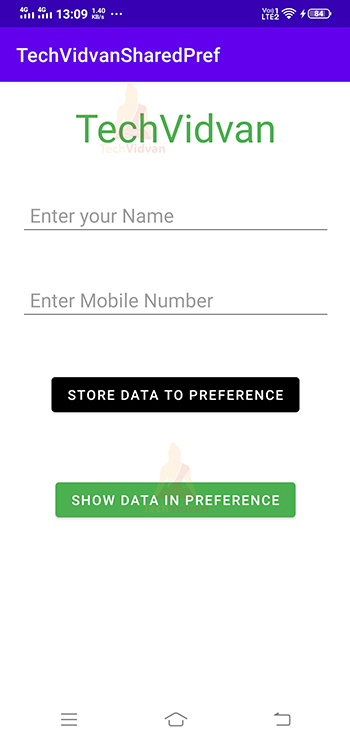
Finally, run your application on your device or emulator and notice the output you got.
The app is asking me to enter my name and phone number.

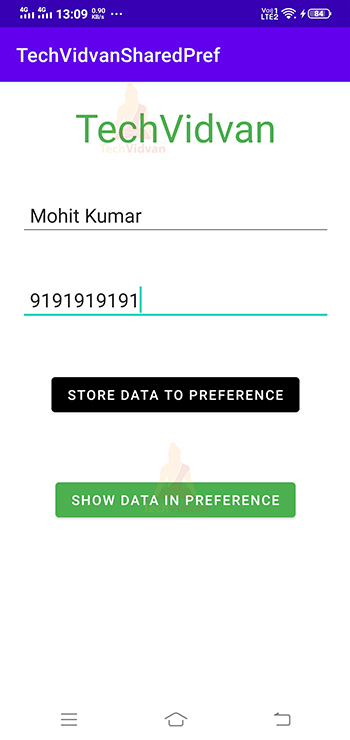
After entering my name and phone number, I will click on the store button and close the application.
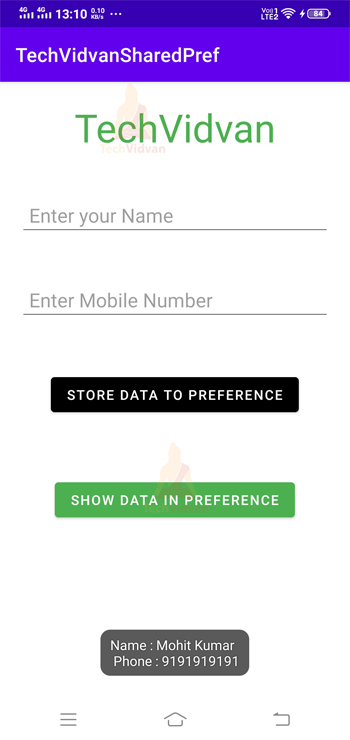
Now restart your application and click on show data. You can notice that the data was successfully stored in the shared preferences of your application.
Summary
Through this article, you came across Preferences and Shared Preferences in Android. You came across the use and type of data it can store. You saw the several APIs to implement preferences in Android. Later on, you came across Shared Preferences and their methods. Moving further, you saw the differences between preferences and Shared Preferences. Finally, you saw an implementation of Shared Preferences in Android.