
Flutter Project – Hangman Game
Hangman is a classic word-guessing game that is often played to test vocabulary and word-solving skills. It is popular with children and adults and can be enjoyed in various settings.
Hangman is a word-guessing game in which one player thinks of a word, and the other tries to guess it letter by letter. The guesser has a limited number of incorrect guesses before a hangman figure is fully drawn. The objective is for the guesser to guess the word correctly while avoiding the completion of the hangman figure. The game is both fun and educational, testing vocabulary and deduction skills.
About Flutter Hangman Game
In this Flutter Hangman Game Project, we will build the Hangman game in Flutter. We will implement the game’s rules, build the game’s UI, interact with users, and learn about various widgets used in building the app. By the end of this Project, you’ll have a fully functional Flutter-based Hangman app that you can use and customize as you see fit.
Prerequisites For Flutter Hangman Game
To start working on Flutter, first, let’s install the below-mentioned required software to build the app:
(i) Flutter – Install Flutter, depending on your operating system .
(ii) Android Studio – Android Studio is necessary as it will run the app in the Android emulator.
(iii) Visual Studio Code—Although this is not necessary, you can also build apps in Android Studio. In our case, we have used VS Code as it is a good code editor.
Now that the setup is ready, let’s get started!
Download Flutter Hangman Game Project
Please download the source code of Flutter Hangman Game Project: Flutter Hangman Game Project Code.
Creating New Flutter Hangman Game Project
Let’s start with creating a new Flutter Hangman Game Project through the Flutter terminal. Go to the directory where you want to save the project using:-
cd $Project-directory-path
Then create a new project using the below command:-
flutter create hangman

Changes in the pubsec.yaml file
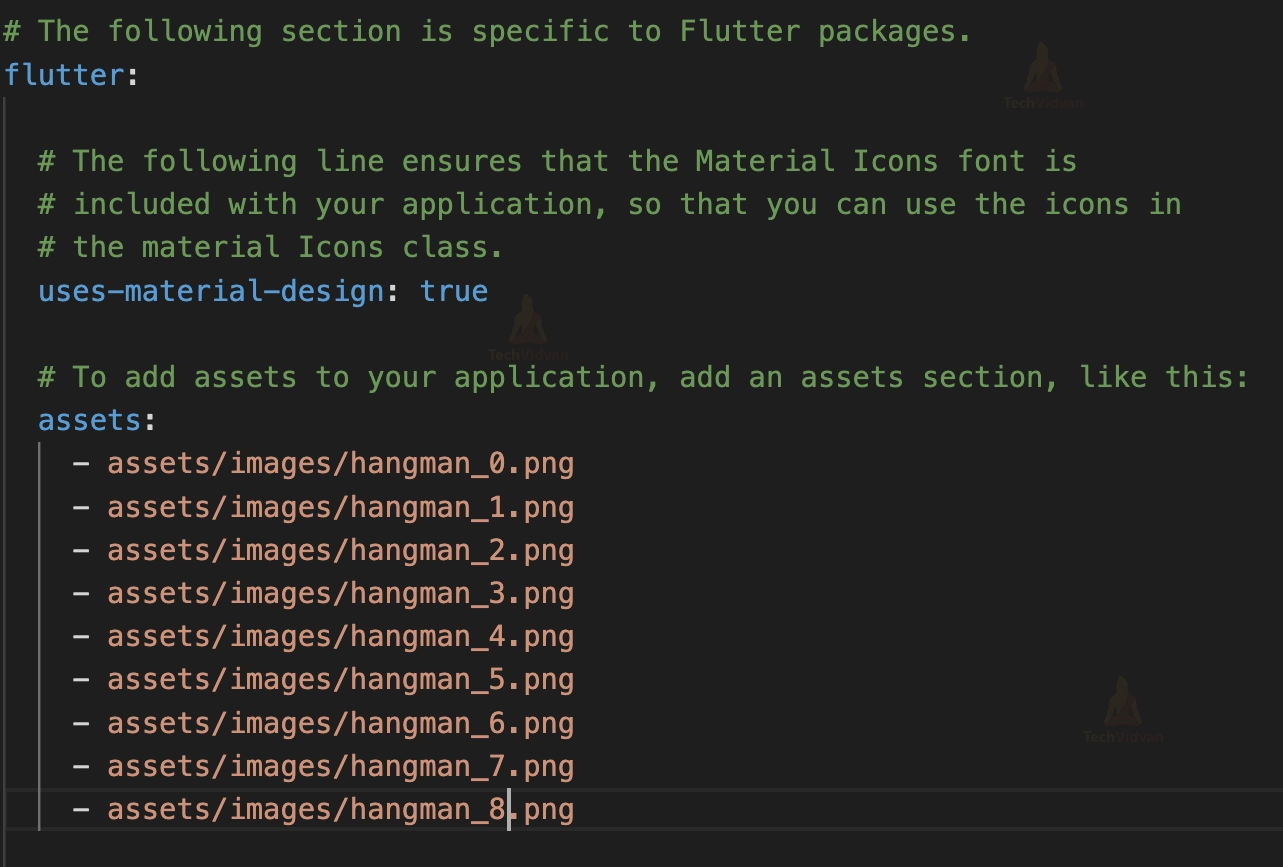
We are using images in our app to display the stages of the hangman. In Flutter, we need to specify these assets(images in our case) in our pubsec.yaml file. In the file, under the assets section, you can add the images we are using with their specific path to the image files. You can see the changes in the below image.
Steps to Build Flutter Hangman Game
1. Creating the Logic for Hangman Game
Before building the UI of the app, let’s write the code for the logic of the app. Here we defined a few variables like hanged, which is total number of guesses; _wrongGuesses, which is the number of wrong guesses by the player, wordList which is the list of words that will be used to guess in the game, letterGuessed, which will store the set of letters that the player has guessed. We have also initialized several StreamController, which will be used to listen to various events such as _onWin, _onLose, _onWrong, _onRight, _onChange.
Other that this, we have created several functions which we will use for the logic of the app. These functions are:-
(i) newGame – This help intitalizing a new game where a new word will be selected from the list, variables like _wrongGuesses and lettersGuesses will be reseted
(ii) guessLetter – This function will be executed as the player selects a letter. It will add the letter in lettersGuessed set and check if the letter is present in the word. It will check for the win, and if the letter is not in the word, it will check for a lose and update the variables accordingly.
(iii) isWordComplete – It checks if the player has guessed all the letters of the word.
import 'dart:async';

class HangmanGame {
  static const int hanged =
      7; // number of wrong guesses before the player's demise

  final List<String> wordList; // list of possible words to guess
  final Set<String> lettersGuessed = Set<String>();

  List<String> _wordToGuess = []; // Made changes here
  int _wrongGuesses = 0; // Made changes here

  StreamController<Null> _onWin = new StreamController<Null>.broadcast();
  Stream<Null> get onWin => _onWin.stream;

  StreamController<Null> _onLose = new StreamController<Null>.broadcast();
  Stream<Null> get onLose => _onLose.stream;

  StreamController<int> _onWrong = new StreamController<int>.broadcast();
  Stream<int> get onWrong => _onWrong.stream;

  StreamController<String> _onRight = new StreamController<String>.broadcast();
  Stream<String> get onRight => _onRight.stream;

  StreamController<String> _onChange = new StreamController<String>.broadcast();
  Stream<String> get onChange => _onChange.stream;

  // ignore: unnecessary_new
  HangmanGame(List<String> words) : wordList = new List<String>.from(words);

  void newGame() {
    // shuffle the word list into a random order
    wordList.shuffle();

    // this extracts the first word from the random list of words
    _wordToGuess = wordList.first.split('');

    // reset the wrong guess count
    _wrongGuesses = 0;

    // it clears the lettersGuessed set
    lettersGuessed.clear();

    // declare the change (new word)
    _onChange.add(wordForDisplay);
  }

  void guessLetter(String letter) {
    // store guessed letter
    lettersGuessed.add(letter);

    // it checks if the user has won if letter in the word
    // otherwise, check for player death
    if (_wordToGuess.contains(letter)) {
      _onRight.add(letter);

      if (isWordComplete) {
        _onChange.add(fullWord);
        _onWin.add(null);
      } else {
        _onChange.add(wordForDisplay);
      }
    } else {
      _wrongGuesses++;

      _onWrong.add(_wrongGuesses);

      if (_wrongGuesses == hanged) {
        _onChange.add(fullWord);
        _onLose.add(null);
      }
    }
  }

  int get wrongGuesses => _wrongGuesses;
  List<String> get wordToGuess => _wordToGuess;
  String get fullWord => wordToGuess.join();

  String get wordForDisplay => wordToGuess
      .map((String letter) => lettersGuessed.contains(letter) ? letter : "_")
      .join();

  // check if all letters in the word are selected by the plsyer
  bool get isWordComplete {
    for (String letter in _wordToGuess) {
      if (!lettersGuessed.contains(letter)) {
        return false;
      }
    }

    return true;
  }
}
2. Starting with the Main Layout of the App
Now that we know the logic of the app, let’s start building the UI of the app. We have imported the material.dart package from Flutter to use the widgets, which will help in building the UI components. We have also imported the hangman logic file which we created in the previous section, and another home_page file, which we will see in the next section.
We have initialized a list of words to be used in the game, game logic which we will use, and color scheme by the variable kColorScheme which we will use to define the theme of the app.
In the MaterialApp, we define theme using ThemeData and use the color scheme defined in the variable. We also define background and foreground color for appBarTheme. In the home, we return the Scaffold widget in which we have an AppBar, and in the body, we return the Home Page which we will create in the next section.
import 'package:flutter/material.dart';

import './home_page.dart';
import './engine/hangman_logic.dart';

const List<String> wordList = [
  "PLENTY",
  "ACHIEVE",
  "CLASS",
  "STARE",
  "AFFECT",
  "THICK",
  "CARRIER",
  "BILL",
  "SAY",
  "ARGUE",
  "OFTEN",
  "GROW",
  "VOTING",
  "SHUT",
  "PUSH",
];

ColorScheme kColorScheme =
    ColorScheme.fromSeed(seedColor: const Color.fromARGB(255, 239, 221, 179));
HangmanGame gameLogic = HangmanGame(wordList);
void main() {
  runApp(MaterialApp(
    theme: ThemeData(
      colorScheme: kColorScheme,
      appBarTheme: const AppBarTheme().copyWith(
          backgroundColor: kColorScheme.onPrimaryContainer,
          foregroundColor: kColorScheme.primaryContainer),
    ),
    home: Scaffold(
      appBar: AppBar(
        title: const Text('Hangman (By TechVidvan)'),
      ),
      body: HomePage(
        logic: gameLogic,
      ),
    ),
  ));
}
3. Creating the Home Page
We have created the custom widget Home Page to show the main content of the page which is a Stateful widget as the UI of the app needs to be rendered again with user interaction. Here we initialize variables like victoryImage which refers to the path of the victory image, currentImageState that is used to show which stage of hangman image will be displayed on the screen, alphabets which is a list from A-Z, showNewGame which is a boolean variable that tells whether the button New Game should be displayed on the page or not and currentWord variable which is the word that user types.
We have also created functions which will be used as the user interact with the game. These functions are updateActiveWord which updates the currentWord as user types, updateHangmanImage which update the hangman image depending on the stage of game, _gameOver which is used to update _showNewGame variable, _win which executes when user wins the game and _newGame which again initializes all the variables from the start.
In the initState, we use various listeners which we created in the hangman_logic file to execute the functions we defined in case there is any change or user selects the wrong letter or if user wins or loses the game.
import 'package:flutter/material.dart';

import 'package:hangman/engine/hangman_logic.dart';
import './widgets/bottom_content.dart';

class HomePage extends StatefulWidget {
  const HomePage({super.key, required this.logic});
  final HangmanGame logic;
  @override
  State<HomePage> createState() {
    return _HomePageState();
  }
}

class _HomePageState extends State<HomePage> {
  final String victoryImage = 'assets/images/hangman_8.png';
  int currentImageState = 0;

  final List<String> alphabets = [
    'A',
    'B',
    'C',
    'D',
    'E',
    'F',
    'G',
    'H',
    'I',
    'J',
    'K',
    'L',
    'M',
    'N',
    'O',
    'P',
    'Q',
    'R',
    'S',
    'T',
    'U',
    'V',
    'W',
    'X',
    'Y',
    'Z'
  ];

  late bool _showNewGame = false;
  late String _currentWord = '';

  @override
  void initState() {
    super.initState();

    widget.logic.onChange.listen(_updateActiveWord);
    widget.logic.onWrong.listen(_updateHangmanImage);
    widget.logic.onWin.listen(_win);
    widget.logic.onLose.listen(_gameOver);

    _newGame();
  }

  void _updateActiveWord(String word) {
    setState(() {
      _currentWord = word;
    });
  }

  void _updateHangmanImage(int wrongGuessCount) {
    setState(() {
      currentImageState = wrongGuessCount;
    });
  }

  void _gameOver(Null) {
    setState(() {
      _showNewGame = true;
    });
  }

  void _win(Null) {
    setState(() {
      currentImageState = 8;
      _gameOver(Null);
    });
  }

  void _newGame() {
    widget.logic.newGame();

    setState(() {
      currentImageState = 0;
      _currentWord = '';
      _showNewGame = false;
    });
  }
In the build function, we return the content of the page, which is shown using the Column widget, which is contained in a container. In the column widget’s children argument, we return the Image of the current stage of hangman wrapped in the Expanded widget so that the image takes as much space as possible, Text widget to show the currentWord typed by the user which has been given padding using the padded widget and a custom widget, BottomContent which we will create in the next section. The BottomContent widget is also wrapped around the Expanded widget, so it should take as much space as available.
@override
  Widget build(BuildContext context) {
    return Container(
      alignment: Alignment.center,
      width: double.infinity,
      height: double.infinity,
      child: Column(
        children: [
          Expanded(
            child: Image.asset('assets/images/hangman_$currentImageState.png'),
          ),
          Padding(
            padding: const EdgeInsets.all(20),
            child: Text(
              _currentWord,
              style: const TextStyle(fontSize: 30, letterSpacing: 5.0),
            ),
          ),
          Expanded(
              child: Center(
            child: BottomContent(
              alphabets: alphabets,
              displayNewGame: _showNewGame,
              newGame: _newGame,
              userLettersGuessed: widget.logic.lettersGuessed,
              guessLetter: widget.logic.guessLetter,
            ),
          ))
        ],
      ),
    );
  }
}
4. Helper Widgets Used in the App
Here below we have created a custom widget, BottomContent, which is a stateless widget. It is used to display the bottom content of the page. In the constructor function, we accept various arguments that we will use while building the widget.
The content is displayed on the basis of the displayNewGame parameter, which we accept as an argument in the constructor function.
If the variable is true, then we display the TextButton for the NewGame; otherwise, if it is false, we display the TextButton for letters from A-Z using the Wrap Widget, which displays the content row-wise and, if needed, uses the next row. While pressing the letter, it checks if the letter has already been guessed, and then nothing executes; else, it executes the guessLetter function defined in the hangman logic.
import 'package:flutter/material.dart';

class BottomContent extends StatelessWidget {
  const BottomContent(
      {super.key,
      required this.displayNewGame,
      required this.alphabets,
      required this.newGame,
      required this.userLettersGuessed,
      required this.guessLetter});

  final bool displayNewGame;
  final List<String> alphabets;
  final Function() newGame;
  final Set<String> userLettersGuessed;
  final Function(String) guessLetter;
  @override
  Widget build(BuildContext context) {
    if (displayNewGame) {
      return TextButton(
        onPressed: newGame,
        child: const Text(
          'New Game',
          style: TextStyle(fontSize: 24),
        ),
      );
    } else {
      Set<String> lettersGuessed = userLettersGuessed;
      return Padding(
        padding: const EdgeInsets.all(3.0),
        child: Wrap(
          spacing: 12,
          runSpacing: 3,
          alignment: WrapAlignment.center,
          children: alphabets
              .map(
                (letter) => TextButton(
                  style: TextButton.styleFrom(
                    side: const BorderSide(width: 1.0),
                    textStyle: const TextStyle(
                        fontSize: 18, fontWeight: FontWeight.bold),
                    padding: const EdgeInsets.all(2.0),
                  ),
                  onPressed: lettersGuessed.contains(letter)
                      ? null
                      : () {
                          guessLetter(letter);
                        },
                  child: Text(letter),
                ),
              )
              .toList(),
        ),
      );
    }
  }
}
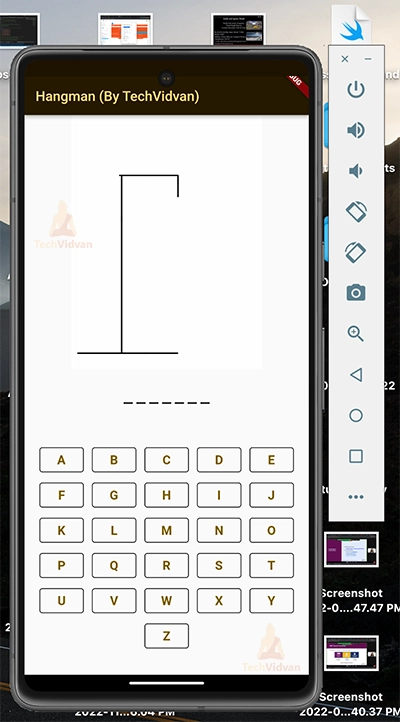
Flutter Hangman Game Output


Conclusion
This Flutter Hangman Game Project included many interesting widgets and the logic of the app. We learned about widgets like Wrap, which we used to show the letters and images; Assets, which we used to show the stages of the Hangman image; Expanded widgets; and how to use StreamControllers to listen to various events.
We also learned about what changes to do in pubsec.yaml file while using images in your project using .assets property of Image widget. We built various functions to implement the logic of the app.
I hope you enjoyed working on this project!
Thank you for reading! Keep Learning Flutter!