
Say Goodbye to JPG, Convert to PDF
This is a Java project that converts an image to a PDF file using java image to pdf converter. The code uses libraries such as iText to perform the conversion. The build tool for this project is Apache Maven.
About Java PDF Converter
The objective of Java PDF Converter project is to provide a simple solution for converting an image to a PDF file using Java and the iText library. By using Maven as the build tool, the project is able to easily manage dependencies and simplify the build process.
Prerequisites for PDF Converter using Java
- Java Development Kit (JDK) installed
- Apache Maven installed
- Eclipse Integrated Development Environment (IDE) installed(or your preferred IDE)
- Basic knowledge of Java programming
- Knowledge of using the Java Swing library
Download Java PDF Converter Project
Please download the source code of Java PDF Converter project from the following link: Java PDF Converter Code
- Language used: Java
- Coding Tool used: Apache Maven
- Type: Desktop Application
- Database used: None
A. Creating the project and adding dependencies
1. Create a new Maven project in Eclipse by navigating to File > New > Project > Maven Project.
2. In the New Maven Project wizard, filter “quickStart” select the one displayed in the image below and click Next.
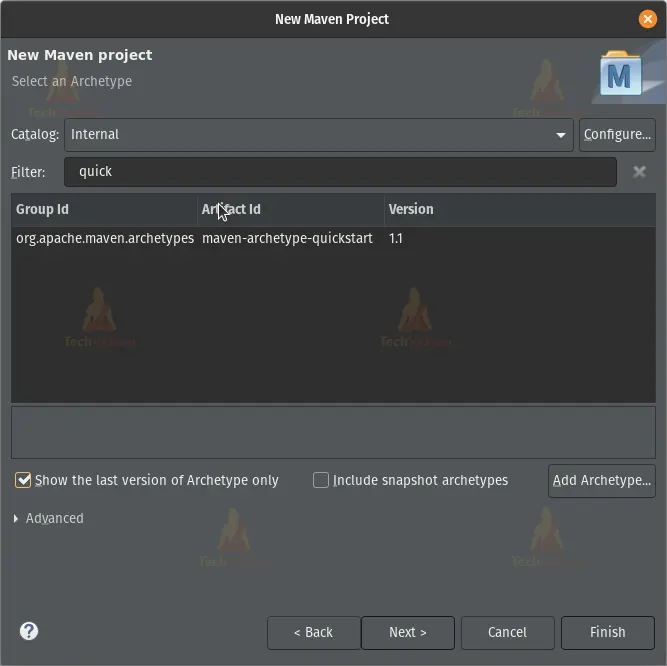
3. Fill in the Group Id, Artifact Id, and Package name fields, then click Finish.

4. Open the pom.xml file and add the following dependencies:
<dependencies>
    <!-- https://mvnrepository.com/artifact/com.itextpdf/itext7-core -->
<dependency>
    <groupId>com.itextpdf</groupId>
    <artifactId>itext7-core</artifactId>
    <version>7.2.5</version>
    <type>pom</type>
</dependency>

  </dependencies>
5. Save the pom.xml file. Maven will automatically download and install the required dependencies.
6. In Eclipse, right-click on the project, then select New > Class.
7. Give the class a name (e.g. ImageToPDFConvertor)
B. Creating the project
Steps to Create PDF Converter using Java
Following are the steps for developing the Java PDF Converter project:
Step 1: Importing Libraries
The first step in this tutorial is to import the required libraries.
The following libraries are required to convert an image to a PDF document:
// Import required packages
package com.TechVidvan;

// Import required libraries
import java.awt.EventQueue;
import javax.swing.JFrame;
import javax.swing.JLabel;
import javax.swing.JOptionPane;
import javax.swing.filechooser.FileNameExtensionFilter;
import javax.swing.JButton;
import java.awt.event.ActionListener;
import java.awt.event.ActionEvent;
import javax.swing.JFileChooser;
import java.io.File;
import java.io.FileOutputStream;
import com.itextpdf.io.image.ImageDataFactory;
import com.itextpdf.kernel.geom.PageSize;
import com.itextpdf.kernel.pdf.PdfDocument;
import com.itextpdf.kernel.pdf.PdfWriter;
import com.itextpdf.layout.Document;
import com.itextpdf.layout.element.Image;
Step 2: Creating a Java Class
Next, create a Java class named ImageToPDFConvertor to convert the image to a PDF document. In the class, create a frame using the Java Swing library and set its properties.
Step 3: Initializing the Frame and its Components
In the ImageToPDFConvertor class, create a method named initialize to initialize the frame and its components. In this method, create two labels input_label and output_label to display the input and output files, respectively.
Step 4: Selecting Input File
Create a button named input_button with an action listener to select the input file. In the action listener, create a file chooser dialog box to select the input file. Filter the file chooser dialog box to show only image files such as jpeg, png, and jpg. Get the selected file and set the input_label to the selected file’s absolute path.
Step 5: Selecting Output File
Create a button named output_button with an action listener to select the output file. In the action listener, create a file chooser dialog box to select the output file. Get the provided file name and set the output_label to the file name.
Step 6: Converting Image to PDF
Create a button named convert_button with an action listener to convert the image to a PDF document. In the action listener, use the iText library to create a new PDF document with the provided file name. Add the image to the PDF document using the ImageDataFactory class and close the document.
Step 7: Displaying Success Message
After converting the image to a PDF document, display a success message using the JOptionPane class.
Step 8: Running the Application
Finally, create a thread to run the application in the main method of the ImageToPDFConvertor class and make the frame visible.
Here is the complete code:
// Import required packages
package com.TechVidvan;

// Import required libraries
import java.awt.EventQueue;
import javax.swing.JFrame;
import javax.swing.JLabel;
import javax.swing.JOptionPane;
import javax.swing.filechooser.FileNameExtensionFilter;
import javax.swing.JButton;
import java.awt.event.ActionListener;
import java.awt.event.ActionEvent;
import javax.swing.JFileChooser;
import java.io.File;
import java.io.FileOutputStream;
import com.itextpdf.io.image.ImageDataFactory;
import com.itextpdf.kernel.geom.PageSize;
import com.itextpdf.kernel.pdf.PdfDocument;
import com.itextpdf.kernel.pdf.PdfWriter;
import com.itextpdf.layout.Document;
import com.itextpdf.layout.element.Image;

// Create a class ImageToPDFConvertor
public class ImageToPDFConvertor {

  private JFrame frame;

  /**
   * Launch the application.
   */
  public static void main(String[] args) {
    EventQueue.invokeLater(new Runnable() {

      // Create a new thread
      public void run() {
        try {
          ImageToPDFConvertor window = new ImageToPDFConvertor();
          window.frame.setVisible(true);
        } catch (Exception e) {
          e.printStackTrace();
        }
      }
    });
  }

  /**
   * Create the application.
   */
  public ImageToPDFConvertor() {
    initialize();
  }

  /**
   * Initialize the contents of the frame.
   */

  // Create a method initialize to initialize the frame and its components
  private void initialize() {

    // Create a new frame and set its properties
    frame = new JFrame();
    frame.setBounds(100, 100, 491, 231);
    frame.setDefaultCloseOperation(JFrame.EXIT_ON_CLOSE);
    frame.getContentPane().setLayout(null);

    // Create a label for input file
    final JLabel input_label = new JLabel("Input File");
    input_label.setBounds(29, 29, 271, 24);
    frame.getContentPane().add(input_label);

    // Create a label for output file
    final JLabel output_label = new JLabel("Output File");
    output_label.setBounds(29, 86, 271, 24);
    frame.getContentPane().add(output_label);

    // Create a button for selecting input file
    JButton input_button = new JButton("Select Input");

    // Add an action listener to the input button
    input_button.addActionListener(new ActionListener() {
      public void actionPerformed(ActionEvent e) {

        // Create a new file chooser
        JFileChooser chooser = new JFileChooser();

        // Set the file filter to select only image files
        FileNameExtensionFilter filter = new FileNameExtensionFilter(
    "Images", "jpeg", "png", "jpg");

        // Show the file chooser dialog
        chooser.setFileFilter(filter);

        // Get the selected file
        chooser.showOpenDialog(null);
        File f = chooser.getSelectedFile();

        // Set the input label to the selected file
        String filename = f.getAbsolutePath();
        input_label.setText(filename);

      }
    });

    // Set the bounds of the input button
    input_button.setBounds(328, 28, 136, 29);
    frame.getContentPane().add(input_button);


    // Create a button for selecting output file
    JButton output_button = new JButton("Select Output");

    // Add an action listener to the output button
    output_button.addActionListener(new ActionListener() {
      public void actionPerformed(ActionEvent e) {

        // Create a new file chooser dialog box for saving the file
        JFileChooser fileChooser = new JFileChooser();
        int option = fileChooser.showSaveDialog(frame);

        // Get the provided file name and set the output label to the file name
        if(option == JFileChooser.APPROVE_OPTION){
        File file = fileChooser.getSelectedFile();
          output_label.setText(file.getAbsolutePath()+".pdf");
        }else{
          output_label.setText("Save command canceled");
        }

      }
    });

    // Set the bounds of the output button
    output_button.setBounds(328, 81, 136, 29);
    frame.getContentPane().add(output_button);

    // Create a button for converting the image to PDF
    JButton convert = new JButton("Convert to PDF");

    // Add an action listener to the convert button
    convert.addActionListener(new ActionListener() {
      public void actionPerformed(ActionEvent e) {


        try {
          // Create a new file with the provided output file name
          File pdfFile = new File(output_label.getText());

          // Create a new PDF document with the provided file name
          PdfWriter writer = new PdfWriter(new FileOutputStream(pdfFile));
          PdfDocument pdf = new PdfDocument(writer);

          // Create a new document and add the image to the document
          Document document = new Document(pdf, PageSize.A4);
          Image image = new Image(ImageDataFactory.create(input_label.getText()));
          document.add(image);
          document.close();

          // Show a message dialog box to indicate that the PDF file has been created successfully
          JOptionPane.showMessageDialog(null, "PDF created successfully at " + pdfFile.getAbsolutePath());
          } catch (Exception ee) {
          JOptionPane.showMessageDialog(null, "An error occurred while converting the image to PDF: " + ee.getMessage());
          }

      }
    });

    // Set the bounds of the convert button
    convert.setBounds(169, 145, 152, 40);
    frame.getContentPane().add(convert);

    // Create a label for indicating that the input file should be an image file
    JLabel not_label = new JLabel("For image files only");
    not_label.setBounds(194, 6, 114, 16);
    frame.getContentPane().add(not_label);
  }
}
Java Image to PDF Converter Output
Output file :
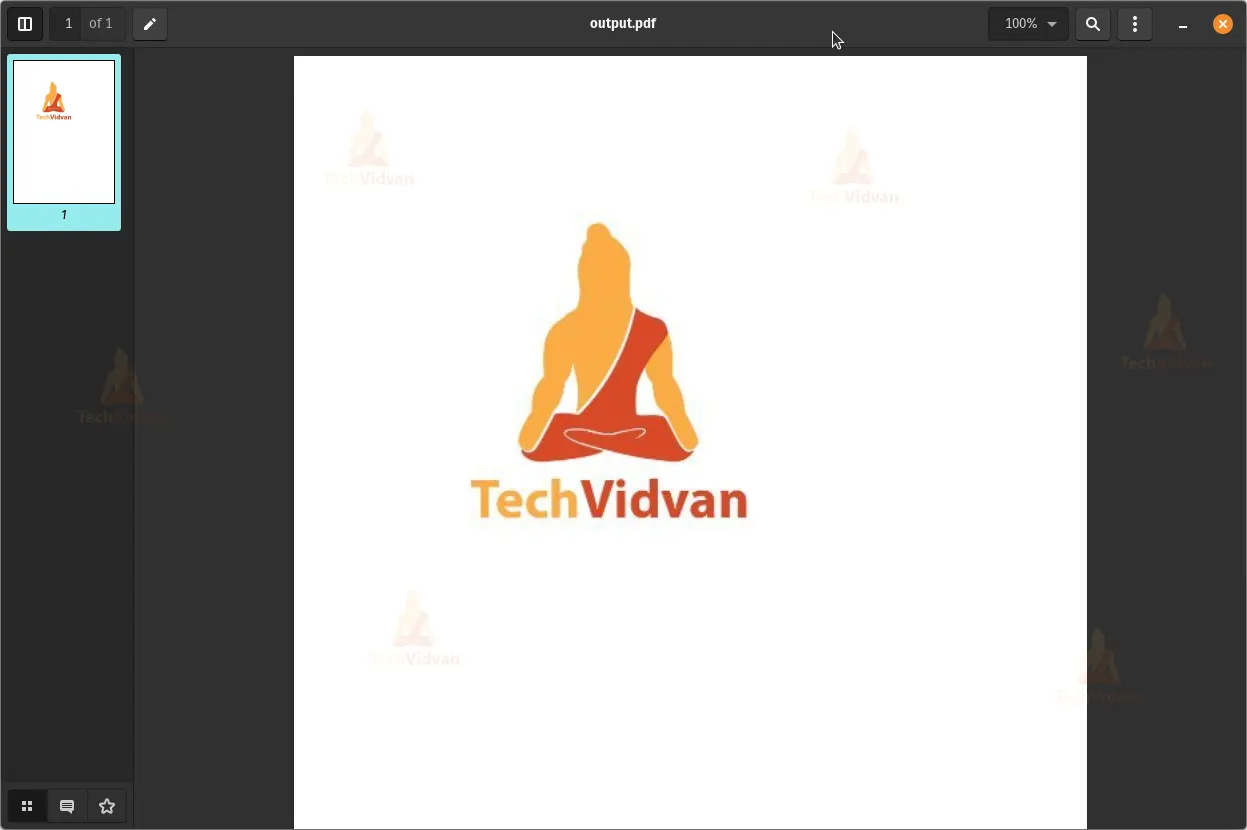
Project Output:

Summary
In this Java PDF Converter, a graphical user interface (GUI) is used to convert an image to a PDF document. The iText library is utilized to create the PDF document from the selected image file.
The GUI consists of a JFrame that has two buttons for selecting the input image file and the output PDF file, respectively. The input image file is displayed in a JLabel and the output PDF file is displayed in another JLabel.
The action listeners for the buttons use a JFileChooser to select the files and set the labels to display the file names. The selected image file is then converted to a PDF document using the iText library and saved to the specified location.