
React Project – Password Generator
A Password Generator is a tool by which users can create a safe password based on the cyber security tool to prevent cyber attacks. It consists of some small letters, capital letters, and some allowed special characters in the password, which a strong password must be as it is mandatory to be safe from our side.
A password is a string of characters used to verify the identity of a user during the authentication process. Passwords are typically used in tandem with a username; they are designed to be known only to the user and allow that user to gain access to a device, application, or website.
A random password generator is to produce random passwords with high security. Generally, random passwords have various benefits over user-chosen passwords, such as enhanced security and confidentiality. The new methodology has been created to generate a random password which consists of both upper- & lower-case letters and digits from 0 to 9, with fixed length.
About React Password Generator Project:
Our password generator consists of one dropdown to select the password in the following lengths as follows such as 6, 8, and 12, and can add more options. For now, we have just three options. And some dynamic password changes every time you click the `Generate Password` button.
Prerequisite For React Password Generator Project:
- React
- API integration
Download React Password Generator Project.
Please download the source code of React Password Generator: React Password Generator Project Code.
Installation Steps:
Download the Visual Studio.
You can choose the appropriate installer for your operating system (Windows, macOS, or Linux) on the download page. Once the installer is downloaded, run it and follow the installation instructions to install VS Code on your computer.
For the installation of React, I have explained some of the steps as follows:
1. The first step is to download the node( as it will help to install react).

2. Now, check the version of the node in Windows by following the command on the terminal:
node --version or node -V
Also, check the npm version using the following command, as it is a tool to download the react
npm --version
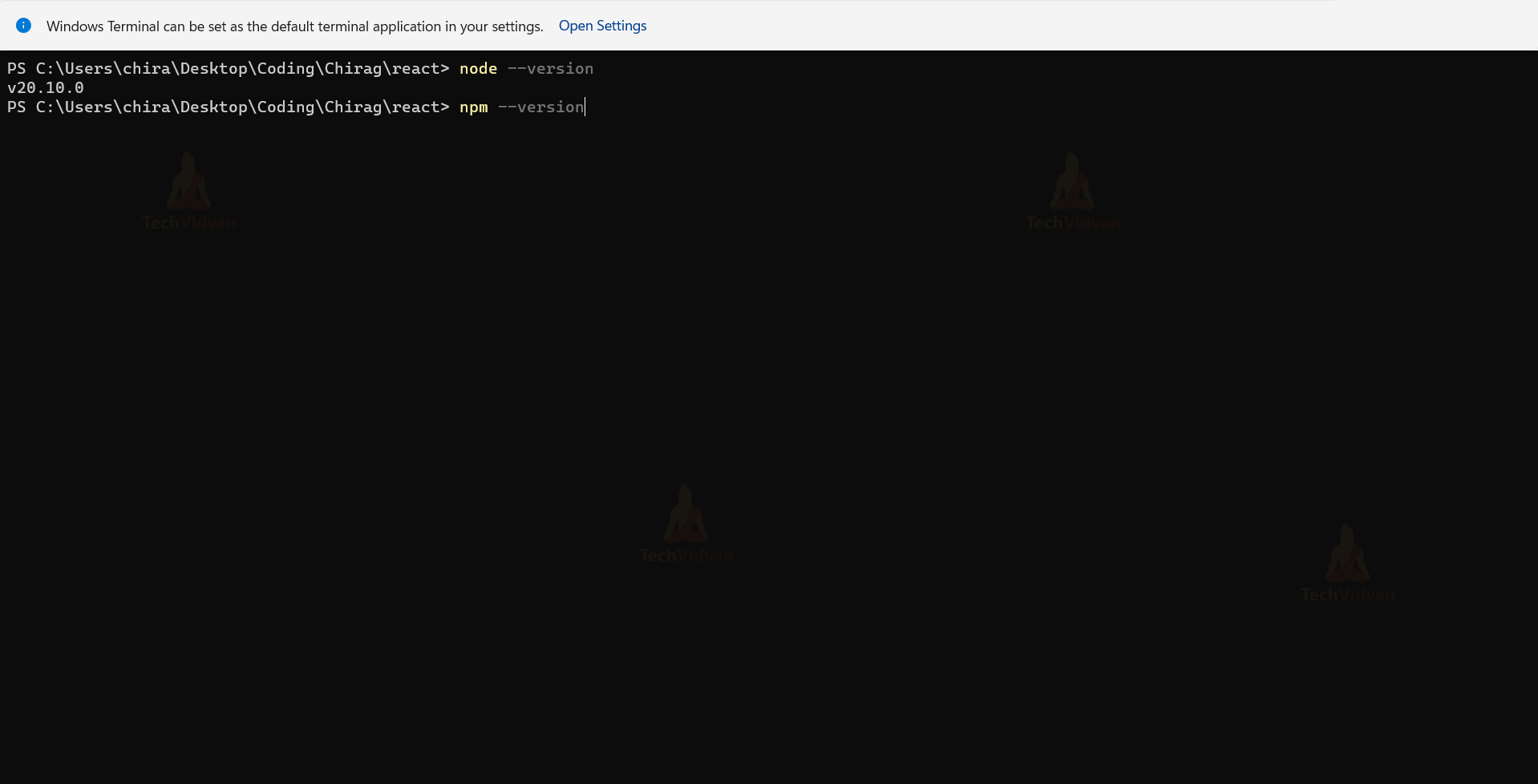
Note – The above thing will show the version of the above thing node or npm respectively. It will show the version if the version is successfully downloaded.
3. Now, create one folder on the desktop as react, open the terminal inside the react app, and go to the react folder using the following command as `cd react` and run the command:
npm init react-app myapp

4. myapp is created, go inside the myapp folder using the command `cd myapp` and then npm start and boom react will run the browser.
Your app react is successfully installed, let’s move towards project building.
Steps to Create a React Password Generator:
1. Now, inside the src of myapp. Create a folder using the name Generator. You can use any name for the folder in which we have to create two files, name generator.jsx and navbar.jsx

2. Inside navbar.jsx, first of all, we create some mandatory libraries and connect them with CSS.
import React from "react";
import "../App.css"
3. This function generates a random password of a specified length. It selects characters from a defined character set, which includes lowercase and uppercase letters, numbers, and special characters. It iterates over the specified length, randomly selecting characters from the set and appending them to the password string.
const generatePassword = (length) => {
  const charset = 'abcdefghi!@#$%^&jklmnopqrstuvwxyzABCDEFGHIJKLMNOPQRSTUVWXYZ0123456789';
  let password = '';
  for (let i = 0; i < length; i++) {
    const randomIndex = Math.floor(Math.random() * charset.length);
    password += charset.charAt(randomIndex);
  }
  return password;
};
4. This function defines a React component that manages a password generator. It utilizes the React state to track and update the password length and the generated password itself.
const PasswordGenerator = () => {
const [passwordLength, setPasswordLength] = useState(6);
const [generatedPassword, setGeneratedPassword] = useState('');
5. This function handles the change event of a dropdown input. It parses the selected value to an integer and updates the state variable passwordLength accordingly.
const handleDropdownChange = (event) => {
    const selectedLength = parseInt(event.target.value, 10);
    setPasswordLength(selectedLength);
 };
6. This function generates a new password using the current passwordLength state value and updates the generatedPassword state with the newly generated password.
const handleGeneratePassword = () => {
    const newPassword = generatePassword(passwordLength);
    setGeneratedPassword(newPassword);
 };
7. The dropdown menu is bound to the handleDropdownChange function for handling changes, and the button is bound to the handleGeneratePassword function for generating a new password when clicked.
<form>
        <label htmlFor="passwordLength">Select Password Length:</label>
        <select id="passwordLength" onChange={handleDropdownChange} value={passwordLength}>
          <option value={6}>6 Characters</option>
          <option value={8}>8 Characters</option>
          <option value={12}>12 Characters</option>
        </select>
        <br />
        <button type="button" onClick={handleGeneratePassword}>
          Generate Password
        </button>
      </form>
8. This JSX code renders a div containing the generated password if generatedPassword is truthy. It displays the heading “Generated Password:” followed by the generated password itself inside a paragraph element.
{generatedPassword && (
        <div>
                  <h2>Generated Password:</h2>
       <p>{generatedPassword}</p>
       </div>
    )}
Here is the complete code of the above explanation and CSS.
Generator > generator.jsx
import React, { useState } from 'react';
import '../App.css'

const generatePassword = (length) => {
  const charset = 'abcdefghi!@#$%^&jklmnopqrstuvwxyzABCDEFGHIJKLMNOPQRSTUVWXYZ0123456789';
  let password = '';
  for (let i = 0; i < length; i++) {
    const randomIndex = Math.floor(Math.random() * charset.length);
    password += charset.charAt(randomIndex);
  }
  return password;
};

const PasswordGenerator = () => {
  const [passwordLength, setPasswordLength] = useState(6);
  const [generatedPassword, setGeneratedPassword] = useState('');

  const handleDropdownChange = (event) => {
    const selectedLength = parseInt(event.target.value, 10);
    setPasswordLength(selectedLength);
  };

  const handleGeneratePassword = () => {
    const newPassword = generatePassword(passwordLength);
    setGeneratedPassword(newPassword);
  };

  return (
    <div style={{ textAlign: 'center', marginTop: '100px' }}>
      <h1>Password Generator</h1>
      <form>
        <label htmlFor="passwordLength">Select Password Length:</label>
        <select id="passwordLength" onChange={handleDropdownChange} value={passwordLength}>
          <option value={6}>6 Characters</option>
          <option value={8}>8 Characters</option>
          <option value={12}>12 Characters</option>
        </select>
        <br />
        <button type="button" onClick={handleGeneratePassword}>
          Generate Password
        </button>
      </form>
      {generatedPassword && (
        <div>
          <h2>Generated Password:</h2>
          <p>{generatedPassword}</p>
        </div>
      )}
    </div>
  );
};

export default PasswordGenerator;
navbar.jsx
import React from "react";
import "../App.css"

const Navbar = () => {
    return (
        <nav className="navbar">
            <ul className="navbar-list">
                <li>
                    Random Password Generator<br/><span className="impname">by DataFlair</span>
                </li>
            </ul>
        </nav>
    );
};

export default Navbar;
App.css
* {
    margin: 0;
    padding: 0;
    box-sizing: border-box;
  }

  body {
    font-family: Arial, sans-serif;
    background-color: #f0f2f5;
  }

  .container {
    display: flex;
    justify-content: center;
    align-items: center;
    height: 100vh;
  }

  .form-container {
    background-color: #fff;
    border-radius: 8px;
    box-shadow: 0 2px 4px rgba(0, 0, 0, 0.1);
    padding: 20px;
    width: 300px;
  }

  h1 {
    font-size: 24px;
    margin-bottom: 20px;
    text-align: center;
  }

  label {
    display: block;
    margin-bottom: 8px;
    font-weight: bold;
  }

  select,
  button {
    width: 30%;
    padding: 10px;
    margin-bottom: 15px;
    border-radius: 4px;
    border: 1px solid #dddfe2;
    font-size: 16px;
  }

  button {
    background-color: tomato;
    color: #fff;
    cursor: pointer;
    transition: background-color 0.3s ease;
  }

  button:hover {
    background-color: rgb(234, 114, 93);
  }

  p {
    text-align: center;
    font-size: 18px;
    margin-top: 20px;
  }

  .navbar {
    background-color: tomato;
    padding: 10px 20px;
  }

  .navbar-list {
    list-style-type: none;
    margin: 0;
    padding: 0;
  }

  .navbar-list li {
    color: black;
    font-weight: bold;
    font-size: 20px;
    text-transform: uppercase;
  }

  .navbar-list li:hover {
    cursor: pointer;
    text-decoration: underline;
  }

 .navbar-list .impname{
    font-size: 10px;
    color: white;
  }
React Password Generator Output


Conclusion
It handles dropdown changes to set the password length and generates a password based on the specified length when triggered.
The component maintains and updates the generated password based on user interactions through the dropdown and password generation function. The password generator is a tool that allows users to create secure passwords of varying lengths. Users can select the desired length from predefined options, and upon clicking a button, a randomly generated password is displayed.
This approach ensures stronger passwords compared to manually creating them, enhancing security for online accounts and sensitive information. By offering flexibility in password length and using random character selection, the generator improves password strength, reducing vulnerability to unauthorized access and enhancing overall security measures.