
Android Clipboard – Architecture and Implementation
I hope you are enjoying the Android articles and are developing some awesome apps. In this article, we will try to cover one more exciting topic: Android Clipboard. Android Clipboard is a tool that we often use on our devices. It’s pretty tricky for us to memorise everything and then use it. Whether it’s a phone number, URL link, or some address, it’s hard to remember and use it.
So, in such scenarios, we can take the help of an Android clipboard and copy the data. Later on, whenever we require it, we can paste it back from the clipboard.
Android Clipboard and its uses
Android Clipboard provides you with the feature of copying your data from one section and pasting it on another area. It is possible in android due to the presence of the Android Clipboard framework. The Android Clipboard Framework provides us with a library of ClipboardManager and ClipData that helps us copy data from one location to another.
Uses of Android Clipboard:
- Copy and paste your data from one area to another.
- Copying multiple types of data, whether an image, text, number, URL, or even complex data types.
- You can store some of your frequently needed data like phone number and address in the clipboard and then paste it whenever required.
Where is the Clipboard on Android Phone?
On Android Devices, the clipboard is usually available in the form of RAM. Whatever data you copy into the clipboard is stored in the RAM of your device.
To access the stored data from the RAM, you require the Clipboard Manager.
If you wish to access the stored data without using a Clipboard Manager, then you need to root your device. There are some apps available on the Google Play Store to check the history of the data stored in the clipboard.
How to use Android Clipboard?
To use the Android Clipboard, you must first construct a Clipboard class object. To do so, you can use the getSystemService() method, as shown below.
//creating an object of the clipboard manager
//using getSystemService
val myClipboardManager = getSystemService(Context.CLIPBOARD_SERVICE) as ClipboardManager
After successfully creating your Clipboard object, you are ready to take over the action you need to perform. Generally, we use the clipboard to do two primary activities.
- Copy Data
- Paste Data
Let’s see how you can perform each function in detail.
Copy Data
To copy your data, you need to create an object of the ClipData and then use it to store the data in the clipboard. You need to use the respective function applicable to the data you wish to copy for making the object.
For example, you would use the newPlainText() method if you wish to copy plain text. Now to add the data into the Clipboard, you need to use the ClipManager object.
You can see an example implementation below.
//creating our clipData object and passing the text with a label
val myClipData = ClipData.newPlainText("copiedText", enteredText)

//setting the clipped data on the Android clipboard
myClipboardManager.setPrimaryClip(myClipData)
The data which you can pass as the ClipData can be of three types:
1. Text
2. URI
3. Intent
Paste Data
To paste the clipped data from the clipboard, you need to use the getPrimaryClip() method. You can store the data in ClipData.Item object and then later put it wherever we need.
Below is an example of pasting data.
//creating the clipboard manager object
val clipboardManager = getSystemService(Context.CLIPBOARD_SERVICE) as ClipboardManager

//accessing the data from the clipboard and
//placing it on the text view
pastedTextView.text = clipboardManager.primaryClip?.getItemAt(0)?.text
Methods involved in Android Clipboard
Several methods are involved while using the Android Clipboard.
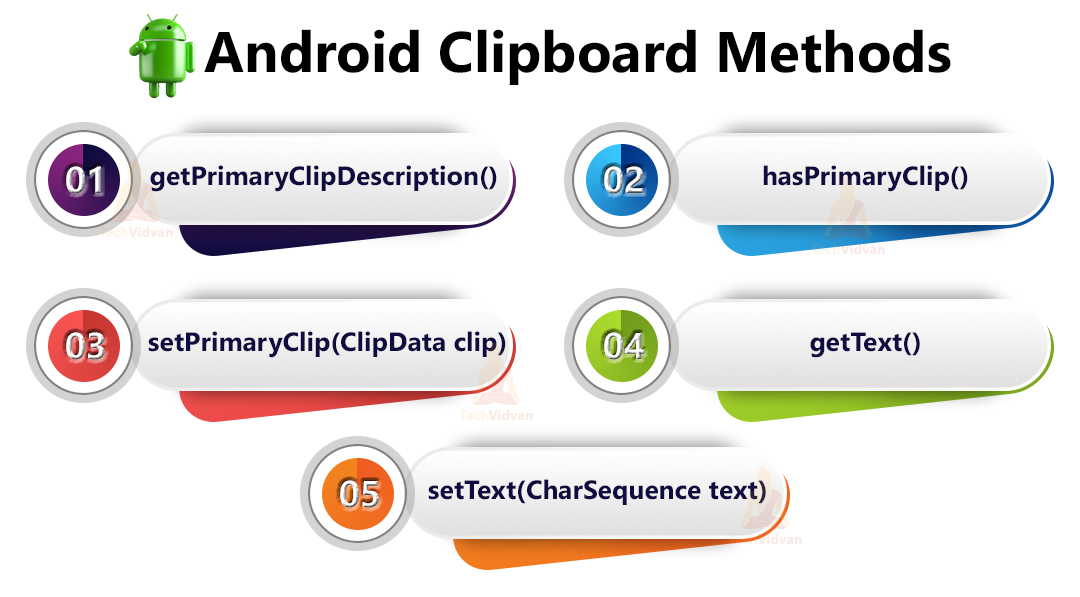
1. getPrimaryClipDescription() – This method provides information about the currently copied data in the clipboard, such as its MIME type. It returns a ClipDescription object that describes the data format and type, which can be useful for understanding the kind of data you are working with.
2. hasPrimaryClip() – This method tells us whether there is any data available in the primary clipboard or not. It returns a boolean value—true if there is data available, and false otherwise. This helps in checking if there is something to paste or if the clipboard is empty.
3. setPrimaryClip(ClipData clip) – This method sets the data on the clipboard’s primary clip. You pass a ClipData object that contains the data you want to copy. This allows you to programmatically copy data to the clipboard, which can be used for later retrieval or pasting.
4. getText() – This method retrieves the text from the clipboard if the current primary clip contains text data. It returns a CharSequence containing the text, which you can use directly in your application. It is convenient for accessing plain text that has been copied to the clipboard.
5. setText(CharSequence text) – This method sets the textual data directly into the clipboard. You pass a CharSequence representing the text you want to copy. It is a simple way to copy text to the clipboard without needing to create a ClipData object.
The architecture of Android Clipboard Framework
You need to understand the architecture of the Android Clipboard Framework. Through the architecture, you will get to know the parts that are present in the Android Clipboard.
So below is a figure which will guide you through the architecture of Clipboard.
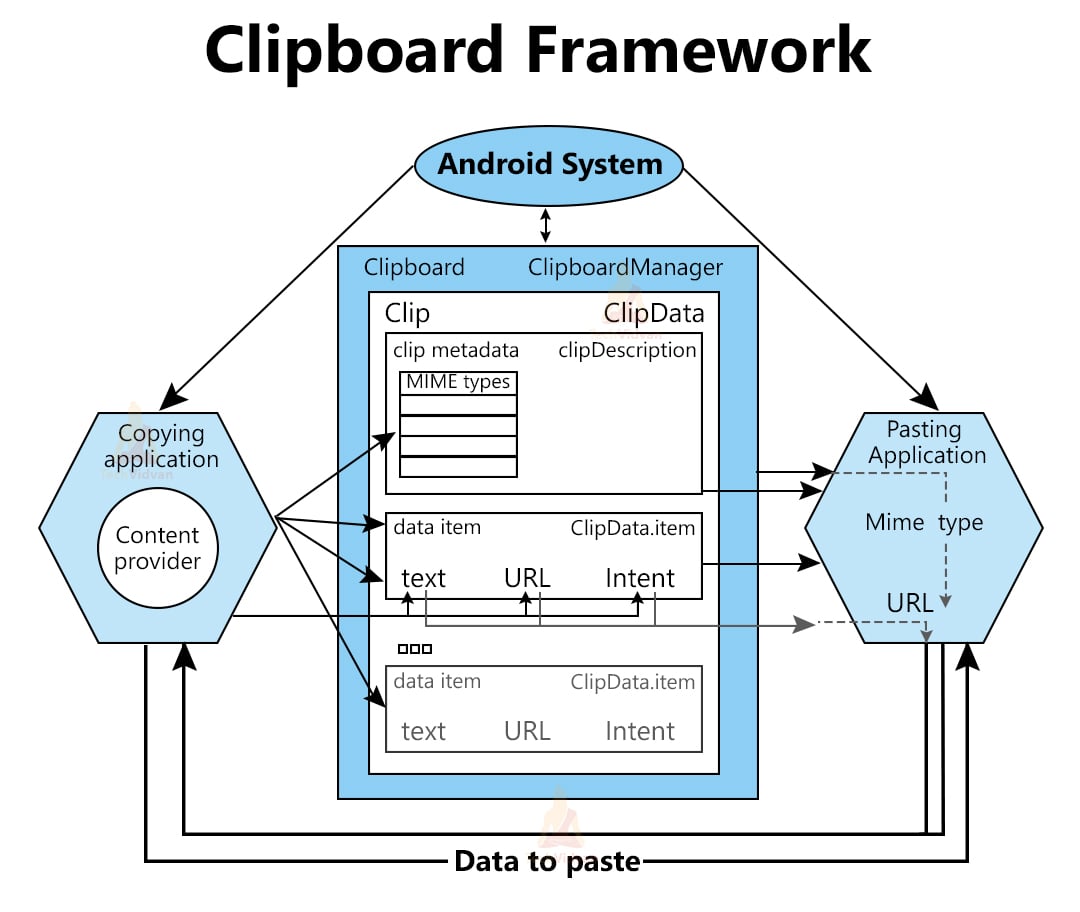
Now let’s see each of the components of the architecture in detail.
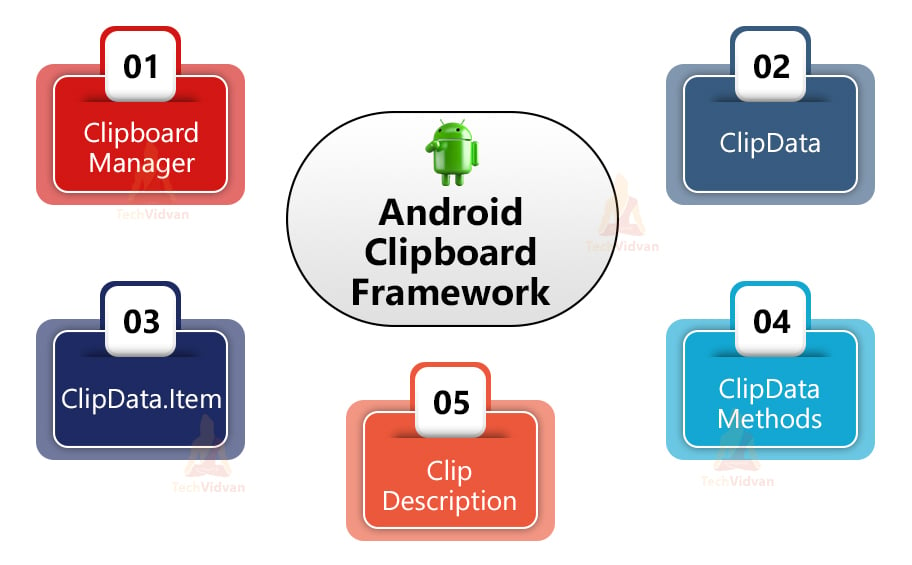
1. Clipboard Manager: Clipboard Manager is a class that manages the system clipboard and stores or sends data to/from the clipboard. It provides methods for accessing and modifying the clipboard’s contents, allowing you to copy, cut, and paste data within your application and across other apps.
2. ClipData: ClipData is an object that holds the actual data item and the description of that data. It is used to encapsulate the data you want to copy to or retrieve from the clipboard, supporting multiple types of data such as text, images, and URIs.
3. ClipData.Item: It’s also a ClipData object used to store the actual data item in the form of text, URI, or an intent. It allows you to manage individual pieces of data within a ClipData object, providing flexibility in how data is stored and accessed.
4. ClipDescription: The ClipDescription object is used to store the metadata of the actual data stored in the ClipBoard. It includes information such as the data’s MIME type and label, helping to describe the nature of the data and ensure compatibility when pasting.
5. ClipData Methods: ClipData methods are used to create ClipData and operate it. These methods allow you to add items, retrieve data, and manipulate the clipboard’s contents, facilitating various clipboard operations and interactions within your app.
Implementation of Android Clipboard
So I hope you are clear with the Android Clipboard and the two possible operations, Copy and Paste. Now it’s time for us to see the steps that are useful to implement Clipboard.
Step 1: Open your Android Studio and select Create a new Project and proceed.
Step 2: Select Empty Activity and then enter a project name of your choice. Now just select API level 22 and proceed.
Step 3: To design the layout, you can use the below code and paste it into your activity_main.xml file.
Code: activity_main.xml
<?xml version="1.0" encoding="utf-8"?>
<LinearLayout xmlns:android="http://schemas.android.com/apk/res/android"
    android:layout_width="match_parent"
    android:layout_height="match_parent"
    android:orientation="vertical"
    android:padding="20dp">

    <TextView
        android:id="@+id/title"
        android:layout_marginTop="20dp"
        android:layout_width="match_parent"
        android:layout_height="wrap_content"
        android:layout_marginBottom="100dp"
        android:gravity="center"
        android:text="TechVidvan Clipboard"
        android:textSize="30sp"
        android:textColor="@color/purple_700"/>

    <LinearLayout
        android:layout_width="match_parent"
        android:layout_height="wrap_content"
        android:orientation="vertical">

        <EditText
            android:id="@+id/your_copied_text"
            android:layout_width="match_parent"
            android:layout_height="wrap_content"
            android:textSize="18sp"
            android:padding="10dp"
            android:hint="Enter the text you wish to copy"
            />

        <Button
            android:onClick="copyText"
            android:layout_width="wrap_content"
            android:layout_height="wrap_content"
            android:layout_marginTop="10dp"
            android:text="Copy Text"
            />

    </LinearLayout>

    <LinearLayout
        android:layout_width="match_parent"
        android:layout_height="wrap_content"
        android:orientation="vertical"
        android:layout_marginTop="50dp">

        <TextView
            android:id="@+id/your_pasted_text"
            android:layout_width="wrap_content"
            android:layout_height="wrap_content"
            android:textSize="18sp"
            android:padding="10dp"
            android:hint="Paste your text here"
            />

        <Button
            android:onClick="pasteText"
            android:layout_width="wrap_content"
            android:layout_height="wrap_content"
            android:layout_marginTop="10dp"
            android:text="Paste Here"
            />

    </LinearLayout>

</LinearLayout>
Step 4: As a final step, you need to add the following in your MainActivity file.
Code: MainActivity.kt
package com.techvidvan.techvidvanclipboard

import android.content.ClipData
import android.content.ClipboardManager
import android.content.Context
import androidx.appcompat.app.AppCompatActivity
import android.os.Bundle
import android.view.View
import android.widget.EditText
import android.widget.TextView
import android.widget.Toast

class MainActivity : AppCompatActivity()
{
    //declaring variables
    lateinit var copiedText:EditText
    lateinit var pastedTextView:TextView
    override fun onCreate(savedInstanceState: Bundle?)
    {
        super.onCreate(savedInstanceState)
        setContentView(R.layout.activity_main)

        //binding the edit text and text view
        //with our created variables
        copiedText = findViewById(R.id.your_copied_text)
        pastedTextView = findViewById(R.id.your_pasted_text)
    }

    fun copyText(view: View)
    {
        //fetching the text from the edit text
        val enteredText = copiedText.text.toString()

        //creating an object of the clipboard manager
        //using getSystemService
        val myClipboardManager = getSystemService(Context.CLIPBOARD_SERVICE) as ClipboardManager

        //creating our clipData object and passing the text with a label
        val myClipData = ClipData.newPlainText("copiedText", enteredText)

        //setting the clipped data on the clipboard
        myClipboardManager.setPrimaryClip(myClipData)

        //updating the user that data is clipped successfully
        Toast.makeText(this, "Yayy!! Your text is copied to the Clipboard", Toast.LENGTH_LONG).show()
    }
    fun pasteText(view: View)
    {
        //creating the clipboard manager object
        val clipboardManager = getSystemService(Context.CLIPBOARD_SERVICE) as ClipboardManager

        //accessing the data from the clipboard and
        //placing it on the text view
        pastedTextView.text = clipboardManager.primaryClip?.getItemAt(0)?.text
    }


}
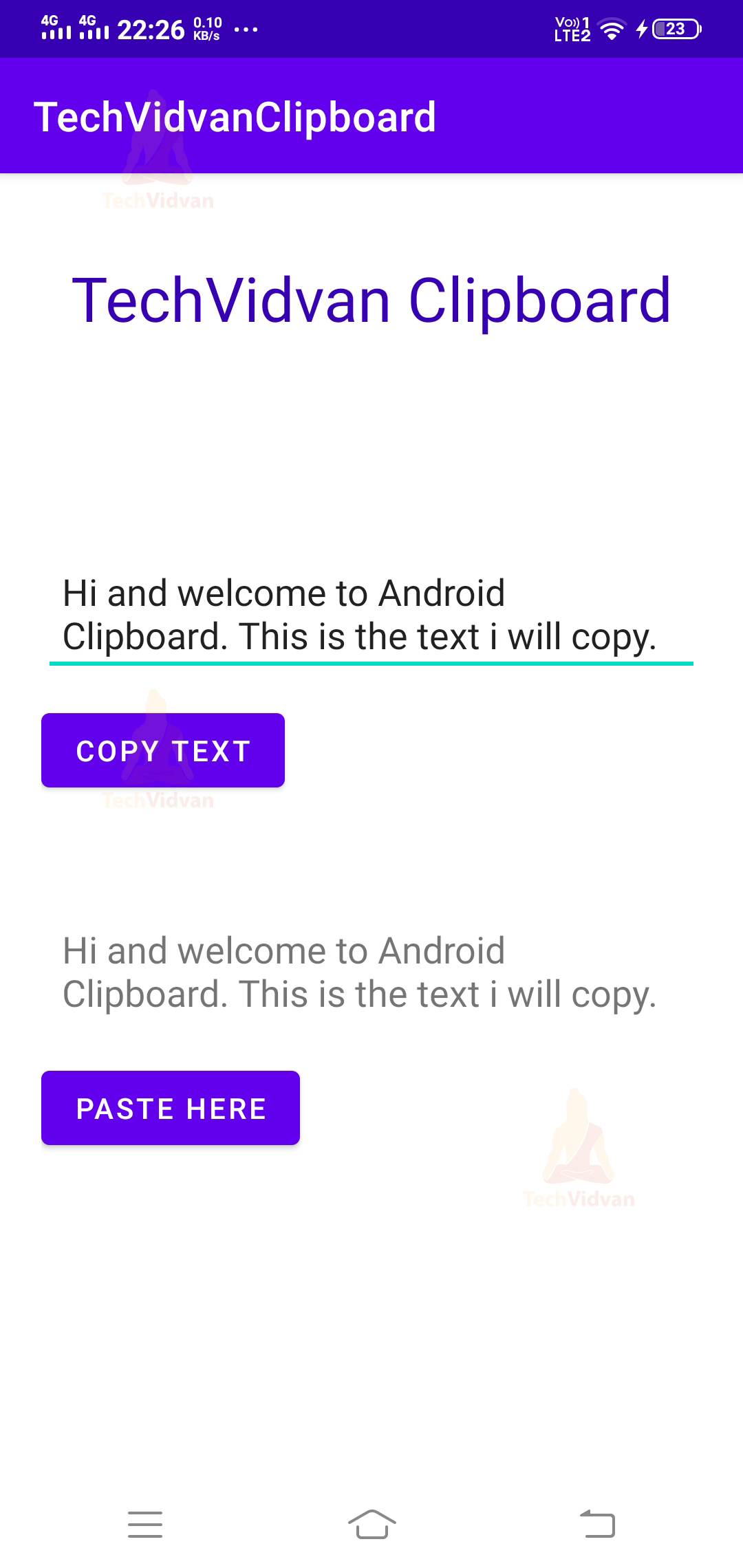
Now simply run your clipboard application.

You can use the copy text button to copy the text and then use the paste text button to paste it.

Summary
Through this article, you got to know about Android Clipboard and its functionalities. You came across the uses and the framework of Android Clipboard. You saw the various methods which are helpful for us to use the Android Clipboard in our application. At last, you saw an application where you can copy the entered text to the clipboard and then paste it somewhere else.