
Android Car Pooling Application – Share the Ride, Share the Love
Today we are going to see and learn to implement an Android Project that is a Car-Pooling App in android studio. We’ll understand the complete project development in this article.
Instead of driving separately to the same places, carpooling will enable users to travel together.
Features of Android Car Pooling Application
Users will find it simpler and more comfortable to look for rides according to their intended destinations with the aid of this application. Users of the carpooling application will be able to add new rides by providing the necessary information.
The application will allow every other user that accesses it to view and search for the rides according to their source and destination.
About Android Car Pooling Application
It will be advantageous for beginners to learn about app development using kotlin and firebase by creating this project from scratch. You will become accustomed to using Android Studio and Firebase while the app is developed.
A new ride can be added to the carpooling app, and other passengers can search for the rides that are already listed in the database. Details about the user interface are as follows:
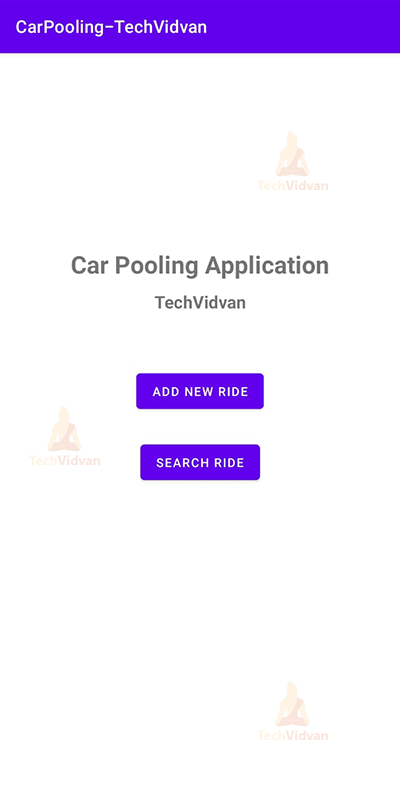
- The user interface will have two buttons to add a new ride and search for rides respectively.
- When the ‘Add new ride’ button is clicked, UI will consist of various fields for the user to enter information necessary for adding a new ride.
- The entered information about the new ride will be saved onto the database when ‘Save Data’ button clicked.
- On the home screen, if the ‘Search Ride’ button is clicked, it will navigate to a screen containing a list of rides stored on the database.
- User interface will have the source and destination for each ride displayed on the screen.
- When the user clicks on a specific ride, details about that particular ride will be displayed on the screen.
Prerequisites for Car Pooling Application using Android
To develop this android application the requirements and prerequisites are as follows:
- Kotlin: You need first be familiar with Kotlin programming. Given that we will write the app code in the programming language Kotlin, it is necessary.
- XML: Another crucial component of our Android application is XML. It will be applied to the development of the application’s user interface.
- Android Studio: The core of our application is Android Studio because that is how we will develop it. Also included with Android Studio is an Android virtual device that can be used to test the functionality of applications.
Download Android Car Pooling Application Project
Please download the source code of Android Car Pooling Application Project from the following link: Android Car Pooling Application Project Code
Steps to Create Car Pooling Application Project using Android
We’ll now start working on developing a car-pooling app. Before putting the code into practice, we will learn about its purpose and function throughout this article. So let’s look at the files and functions needed to run the code:
You must complete a set of steps in order to create this android car-pooling application. We are here to walk you through every stage of developing an app.
- Extract all the files from the downloaded zip file to the location of your choice.
- Open Android Studio.
- Click on File then Open.
- Find and select the folder you extracted earlier and click on OK.
You have successfully opened the reminder app’s source code in android studio.

Let’s go through each file in this project one at a time as we comprehend how the application works.
1. The “activity_main” is a XML file which is responsible for creating the buttons and textviews of the home screen.
<?xml version="1.0" encoding="utf-8"?>
<androidx.constraintlayout.widget.ConstraintLayout xmlns:android="http://schemas.android.com/apk/res/android"
    xmlns:app="http://schemas.android.com/apk/res-auto"
    xmlns:tools="http://schemas.android.com/tools"
    android:layout_width="match_parent"
    android:layout_height="match_parent"
    tools:context=".MainActivity">

    <TextView
        android:id="@+id/textView"
        android:layout_width="wrap_content"
        android:layout_height="wrap_content"
        android:text="Car Pooling Application"
        android:layout_marginTop="200dp"
        android:textSize="28sp"
        android:gravity="center"
        android:textStyle="bold"
        app:layout_constraintEnd_toEndOf="parent"
        app:layout_constraintStart_toStartOf="parent"
        app:layout_constraintTop_toTopOf="parent" />

    <TextView
        android:id="@+id/textView1"
        android:layout_width="wrap_content"
        android:layout_height="wrap_content"
        android:text="TechVidvan"
        android:layout_marginTop="10dp"
        android:textSize="20sp"
        android:gravity="center"
        android:textStyle="bold"
        app:layout_constraintEnd_toEndOf="parent"
        app:layout_constraintStart_toStartOf="parent"
        app:layout_constraintTop_toBottomOf="@+id/textView"/>

    <Button
        android:id="@+id/btnInsertData"
        android:layout_width="wrap_content"
        android:layout_height="wrap_content"
        android:text="Add new ride"
        android:layout_marginTop="90dp"
        app:layout_constraintEnd_toEndOf="parent"
        app:layout_constraintStart_toStartOf="parent"
        app:layout_constraintTop_toBottomOf="@+id/textView" />

    <Button
        android:id="@+id/btnFetchData"
        android:layout_width="wrap_content"
        android:layout_height="wrap_content"
        android:layout_marginTop="25dp"
        android:text="Search Ride"
        app:layout_constraintEnd_toEndOf="parent"
        app:layout_constraintStart_toStartOf="parent"
        app:layout_constraintTop_toBottomOf="@+id/btnInsertData" />

</androidx.constraintlayout.widget.ConstraintLayout>
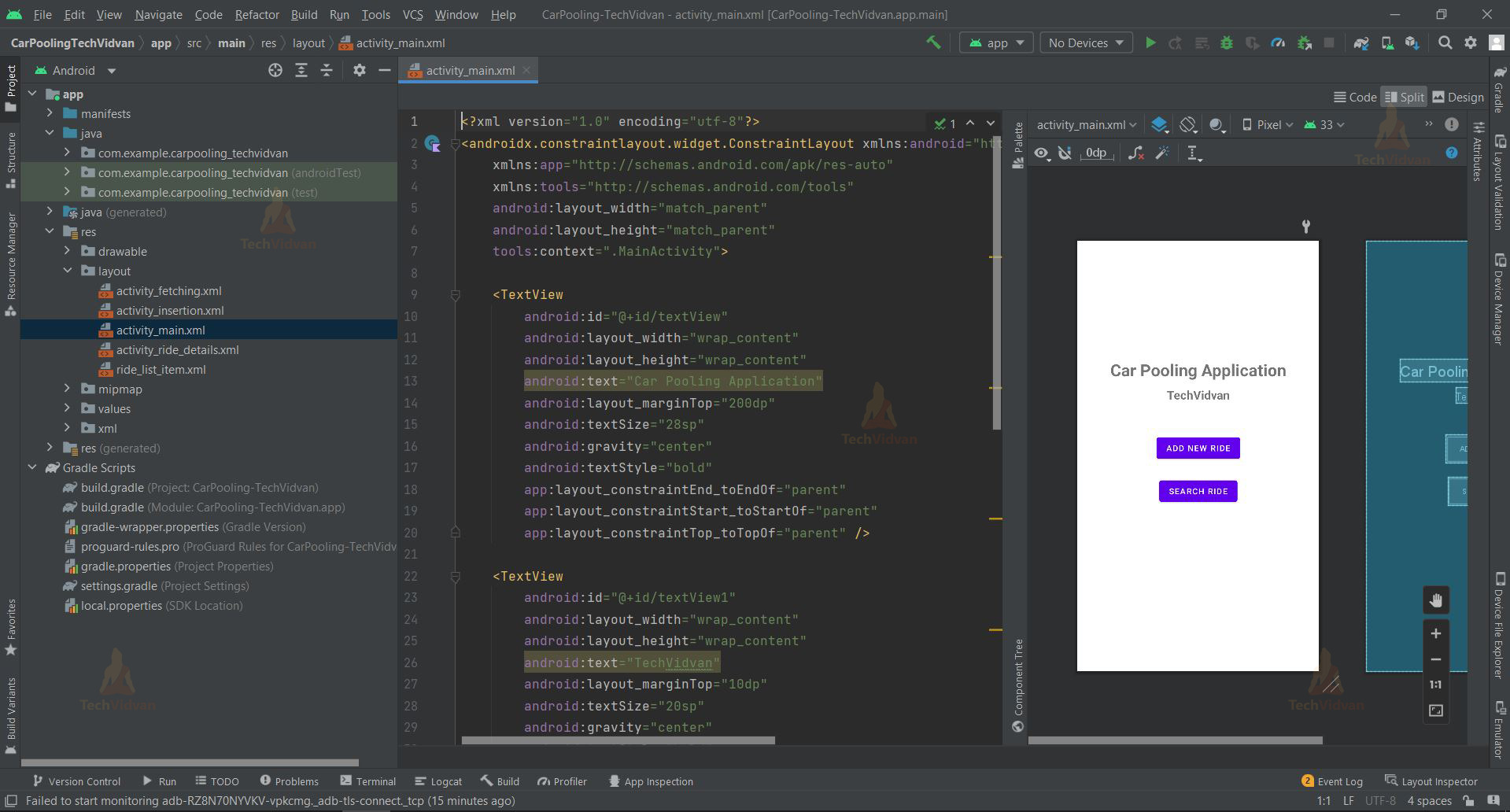
2. The “activity insertion” is a XML file which is responsible for creating the edit textviews that will allow the users to enter necessary information for adding a new ride along with the save button at the bottom of the form.
<?xml version="1.0" encoding="utf-8"?>
<androidx.constraintlayout.widget.ConstraintLayout xmlns:android="http://schemas.android.com/apk/res/android"
    xmlns:app="http://schemas.android.com/apk/res-auto"
    xmlns:tools="http://schemas.android.com/tools"
    android:layout_width="match_parent"
    android:layout_height="match_parent"
    android:padding="16dp"
    tools:context=".InsertionActivity">

    <EditText
        android:id="@+id/etName"
        android:layout_width="0dp"
        android:layout_height="wrap_content"
        android:layout_marginTop="50dp"
        android:ems="10"
        android:inputType="textPersonName"
        android:hint="Rider's Name"
        app:layout_constraintEnd_toEndOf="parent"
        app:layout_constraintStart_toStartOf="parent"
        app:layout_constraintTop_toTopOf="parent" />

    <EditText
        android:id="@+id/etSource"
        android:layout_width="0dp"
        android:layout_height="wrap_content"
        android:layout_marginTop="20dp"
        android:ems="10"
        android:inputType="textPersonName"
        android:hint="Enter Source"
        app:layout_constraintEnd_toEndOf="parent"
        app:layout_constraintStart_toStartOf="parent"
        app:layout_constraintTop_toBottomOf="@+id/etName"/>

    <EditText
        android:id="@+id/etDestination"
        android:layout_width="0dp"
        android:layout_height="wrap_content"
        android:layout_marginTop="20dp"
        android:ems="10"
        android:inputType="textPersonName"
        android:hint="Enter Destination"
        app:layout_constraintEnd_toEndOf="parent"
        app:layout_constraintStart_toStartOf="parent"
        app:layout_constraintTop_toBottomOf="@+id/etSource" />

    <EditText
        android:id="@+id/etTotalPassengers"
        android:layout_width="0dp"
        android:layout_height="wrap_content"
        android:layout_marginTop="20dp"
        android:ems="10"
        android:inputType="textPersonName"
        android:hint="Total Passengers"
        app:layout_constraintEnd_toEndOf="parent"
        app:layout_constraintStart_toStartOf="parent"
        app:layout_constraintTop_toBottomOf="@+id/etDestination" />

    <EditText
        android:id="@+id/etPrice"
        android:layout_width="0dp"
        android:layout_height="wrap_content"
        android:layout_marginTop="20dp"
        android:ems="10"
        android:inputType="textPersonName"
        android:hint="Price per passenger"
        app:layout_constraintEnd_toEndOf="parent"
        app:layout_constraintStart_toStartOf="parent"
        app:layout_constraintTop_toBottomOf="@+id/etTotalPassengers" />

    <EditText
        android:id="@+id/etContact"
        android:layout_width="0dp"
        android:layout_height="wrap_content"
        android:layout_marginTop="20dp"
        android:ems="10"
        android:inputType="textPersonName"
        android:hint="Contact No."
        app:layout_constraintEnd_toEndOf="parent"
        app:layout_constraintStart_toStartOf="parent"
        app:layout_constraintTop_toBottomOf="@+id/etPrice" />

    <EditText
        android:id="@+id/etDate"
        android:layout_width="0dp"
        android:layout_height="wrap_content"
        android:layout_marginTop="20dp"
        android:ems="10"
        android:inputType="textPersonName"
        android:hint="Ride Date (DD-MM-YY)"
        app:layout_constraintEnd_toEndOf="parent"
        app:layout_constraintStart_toStartOf="parent"
        app:layout_constraintTop_toBottomOf="@+id/etContact" />

    <EditText
        android:id="@+id/etTime"
        android:layout_width="0dp"
        android:layout_height="wrap_content"
        android:layout_marginTop="20dp"
        android:ems="10"
        android:inputType="textPersonName"
        android:hint="Time (HH:MM am/pm)"
        app:layout_constraintEnd_toEndOf="parent"
        app:layout_constraintStart_toStartOf="parent"
        app:layout_constraintTop_toBottomOf="@+id/etDate" />

    <Button
        android:id="@+id/btnSave"
        android:layout_width="wrap_content"
        android:layout_height="wrap_content"
        android:layout_marginTop="32dp"
        android:text="Save Data"
        app:layout_constraintEnd_toEndOf="parent"
        app:layout_constraintStart_toStartOf="parent"
        app:layout_constraintTop_toBottomOf="@+id/etTime" />
</androidx.constraintlayout.widget.ConstraintLayout>

3. The “activity_fetching” is a XML file containing a recycler view which is responsible for creating the textviews displaying source and destination for each ride stored in the database.
<?xml version="1.0" encoding="utf-8"?>
<androidx.constraintlayout.widget.ConstraintLayout xmlns:android="http://schemas.android.com/apk/res/android"
    xmlns:app="http://schemas.android.com/apk/res-auto"
    xmlns:tools="http://schemas.android.com/tools"
    android:layout_width="match_parent"
    android:layout_height="match_parent"
    tools:context=".FetchingActivity">

  <androidx.recyclerview.widget.RecyclerView
      android:id="@+id/rvRide"
      android:layout_width="match_parent"
      android:layout_height="match_parent"
      android:layout_marginStart="1dp"
      android:layout_marginTop="1dp"
      android:layout_marginEnd="1dp"
      android:layout_marginBottom="1dp"
      tools:listitem="@layout/ride_list_item"
      app:layout_constraintBottom_toBottomOf="parent"
      app:layout_constraintEnd_toEndOf="parent"
      app:layout_constraintStart_toStartOf="parent"
      app:layout_constraintTop_toTopOf="parent" />

  <TextView
      android:id="@+id/tvLoadingData"
      android:layout_width="wrap_content"
      android:layout_height="wrap_content"
      android:text="Loading Data....."
      android:textSize="28sp"
      android:textColor="@color/black"
      android:textStyle="bold"
      android:visibility="gone"
      app:layout_constraintBottom_toBottomOf="parent"
      app:layout_constraintEnd_toEndOf="parent"
      app:layout_constraintStart_toStartOf="parent"
      app:layout_constraintTop_toTopOf="parent" />

</androidx.constraintlayout.widget.ConstraintLayout>

4. The “ride_list_item” is a XML file containing a card view which is used in the above activity_fetching.xml’s recycler view.
<?xml version="1.0" encoding="utf-8"?>
<androidx.cardview.widget.CardView xmlns:android="http://schemas.android.com/apk/res/android"
    android:layout_width="match_parent"
    android:layout_height="wrap_content"
    xmlns:app="http://schemas.android.com/apk/res-auto"
    app:cardElevation="8dp"
    app:cardCornerRadius="8dp"
    android:layout_margin="8dp">

    <LinearLayout
        android:layout_width="wrap_content"
        android:layout_height="wrap_content"
        android:gravity="center"
        android:padding="16dp"
        android:layout_gravity="center"
        android:orientation="horizontal">

        <LinearLayout
            android:layout_width="wrap_content"
            android:layout_height="wrap_content"
            android:layout_gravity="center_vertical"
            android:orientation="vertical">

            <TextView
                android:layout_width="wrap_content"
                android:layout_height="wrap_content"
                android:text="Source:"
                android:layout_gravity="center"
                android:gravity="center"
                android:textColor="@color/black"
                android:textSize="22sp"
                android:textStyle="bold"/>

            <TextView
                android:layout_width="wrap_content"
                android:layout_height="wrap_content"
                android:text="Destination :"
                android:layout_gravity="center"
                android:gravity="center"
                android:textColor="@color/black"
                android:textSize="22sp"
                android:textStyle="bold"/>


        </LinearLayout>

        <LinearLayout
            android:layout_width="wrap_content"
            android:layout_height="wrap_content"
            android:layout_gravity="center_vertical"
            android:orientation="vertical">

            <TextView
                android:id="@+id/tvSource"
                android:layout_width="wrap_content"
                android:layout_height="wrap_content"
                android:text="Source"
                android:layout_gravity="center"
                android:gravity="center"
                android:layout_marginLeft="2dp"
                android:textColor="@color/black"
                android:textSize="25sp"/>

            <TextView
                android:id="@+id/tvDestination"
                android:layout_width="wrap_content"
                android:layout_height="wrap_content"
                android:text="Destination"
                android:layout_gravity="center"
                android:layout_marginLeft="2dp"
                android:gravity="center"
                android:textColor="@color/black"
                android:textSize="25sp"/>


        </LinearLayout>

    </LinearLayout>

</androidx.cardview.widget.CardView>

5. The “activity_ride_details” is a XML file which is responsible for creating the textviews that will contain the details about the respective ride.
<?xml version="1.0" encoding="utf-8"?>
<androidx.constraintlayout.widget.ConstraintLayout xmlns:android="http://schemas.android.com/apk/res/android"
xmlns:app="http://schemas.android.com/apk/res-auto"
xmlns:tools="http://schemas.android.com/tools"
android:layout_width="match_parent"
android:layout_height="match_parent"
tools:context=".RideDetailsActivity">
<LinearLayout
android:id="@+id/linearLayout"
android:layout_width="match_parent"
android:layout_height="wrap_content"
app:layout_constraintStart_toStartOf="parent"
app:layout_constraintTop_toTopOf="parent"
app:layout_constraintEnd_toEndOf="parent"
android:orientation="vertical">
<LinearLayout
android:id="@+id/id_lin"
android:layout_width="match_parent"
android:layout_height="30dp"
android:layout_marginLeft="10dp"
android:layout_marginTop="20dp"
android:layout_marginRight="10dp"
android:orientation="horizontal"
android:weightSum="2">
<LinearLayout
android:layout_width="0dp"
android:layout_height="match_parent"
android:layout_weight="0.6"
android:background="@color/white1">
<TextView
android:layout_width="match_parent"
android:layout_height="wrap_content"
android:layout_gravity="center"
android:gravity="center"
android:text="Rider's Name"
android:textColor="@color/black"
android:textSize="15sp" />
</LinearLayout>
<LinearLayout
android:layout_width="0dp"
android:layout_height="match_parent"
android:layout_weight="1.4">
<TextView
android:id="@+id/tvName"
android:layout_width="match_parent"
android:layout_height="wrap_content"
android:layout_gravity="center"
android:gravity="center"
android:text=""
android:textColor="@color/black"
android:textSize="20sp"
/>
</LinearLayout>
</LinearLayout>
<LinearLayout
android:id="@+id/contact_lin"
android:layout_width="match_parent"
android:layout_height="40dp"
android:layout_marginLeft="10dp"
android:layout_marginRight="10dp"
android:orientation="horizontal"
android:weightSum="2">
<LinearLayout
android:layout_width="0dp"
android:layout_height="match_parent"
android:layout_weight="0.6"
android:background="@color/white1">
<TextView
android:layout_width="match_parent"
android:layout_height="wrap_content"
android:layout_gravity="center"
android:gravity="center"
android:text="Source"
android:textColor="@color/black"
android:textSize="15sp" />
</LinearLayout>
<LinearLayout
android:layout_width="0dp"
android:layout_height="match_parent"
android:layout_weight="1.4">
<TextView
android:id="@+id/tvSource"
android:layout_width="match_parent"
android:layout_height="wrap_content"
android:layout_gravity="center"
android:gravity="center"
android:text=""
android:textColor="@color/black"
android:textSize="20sp"
/>
</LinearLayout>
</LinearLayout>
<LinearLayout
android:layout_width="match_parent"
android:layout_height="40dp"
android:layout_marginLeft="10dp"
android:layout_marginRight="10dp"
android:orientation="horizontal"
android:weightSum="2"
>
<LinearLayout
android:layout_width="0dp"
android:layout_height="match_parent"
android:layout_weight="0.6"
android:background="@color/white1">
<TextView
android:layout_width="match_parent"
android:layout_height="wrap_content"
android:layout_gravity="center"
android:gravity="center"
android:text="Destination"
android:textColor="@color/black"
android:textSize="15sp"
/>
</LinearLayout>
<LinearLayout
android:layout_width="0dp"
android:layout_height="match_parent"
android:layout_weight="1.4">
<TextView
android:id="@+id/tvDestination"
android:layout_width="match_parent"
android:layout_height="wrap_content"
android:layout_gravity="center"
android:gravity="center"
android:text=""
android:textColor="@color/black"
android:textSize="20sp"
/>
</LinearLayout>
</LinearLayout>
<LinearLayout
android:layout_width="match_parent"
android:layout_height="40dp"
android:layout_marginLeft="10dp"
android:layout_marginRight="10dp"
android:orientation="horizontal"
android:weightSum="2"
>
<LinearLayout
android:layout_width="0dp"
android:layout_height="match_parent"
android:layout_weight="0.6"
android:background="@color/white1">
<TextView
android:layout_width="match_parent"
android:layout_height="wrap_content"
android:layout_gravity="center"
android:gravity="center"
android:text="Total passengers"
android:textColor="@color/black"
android:textSize="15sp"
/>
</LinearLayout>
<LinearLayout
android:layout_width="0dp"
android:layout_height="match_parent"
android:layout_weight="1.4">
<TextView
android:id="@+id/tvTotal"
android:layout_width="match_parent"
android:layout_height="wrap_content"
android:layout_gravity="center"
android:gravity="center"
android:text=""
android:textColor="@color/black"
android:textSize="20sp"
/>
</LinearLayout>
</LinearLayout>
<LinearLayout
android:layout_width="match_parent"
android:layout_height="40dp"
android:layout_marginLeft="10dp"
android:layout_marginRight="10dp"
android:orientation="horizontal"
android:weightSum="2"
>
<LinearLayout
android:layout_width="0dp"
android:layout_height="match_parent"
android:layout_weight="0.6"
android:background="@color/white1">
<TextView
android:layout_width="match_parent"
android:layout_height="wrap_content"
android:layout_gravity="center"
android:gravity="center"
android:text="Price per passenger"
android:textColor="@color/black"
android:textSize="15sp"
/>
</LinearLayout>
<LinearLayout
android:layout_width="0dp"
android:layout_height="match_parent"
android:layout_weight="1.4">
<TextView
android:id="@+id/tvPrice"
android:layout_width="match_parent"
android:layout_height="wrap_content"
android:layout_gravity="center"
android:gravity="center"
android:text=""
android:textColor="@color/black"
android:textSize="20sp"
/>
</LinearLayout>
</LinearLayout>
<LinearLayout
android:layout_width="match_parent"
android:layout_height="40dp"
android:layout_marginLeft="10dp"
android:layout_marginRight="10dp"
android:orientation="horizontal"
android:weightSum="2"
>
<LinearLayout
android:layout_width="0dp"
android:layout_height="match_parent"
android:layout_weight="0.6"
android:background="@color/white1">
<TextView
android:layout_width="match_parent"
android:layout_height="wrap_content"
android:layout_gravity="center"
android:gravity="center"
android:text="Contact"
android:textColor="@color/black"
android:textSize="15sp"
/>
</LinearLayout>
<LinearLayout
android:layout_width="0dp"
android:layout_height="match_parent"
android:layout_weight="1.4">
<TextView
android:id="@+id/tvContact"
android:layout_width="match_parent"
android:layout_height="wrap_content"
android:layout_gravity="center"
android:gravity="center"
android:text=""
android:textColor="@color/black"
android:textSize="20sp"
/>
</LinearLayout>
</LinearLayout>
<LinearLayout
android:layout_width="match_parent"
android:layout_height="40dp"
android:layout_marginLeft="10dp"
android:layout_marginRight="10dp"
android:orientation="horizontal"
android:weightSum="2"
>
<LinearLayout
android:layout_width="0dp"
android:layout_height="match_parent"
android:layout_weight="0.6"
android:background="@color/white1">
<TextView
android:layout_width="match_parent"
android:layout_height="wrap_content"
android:layout_gravity="center"
android:gravity="center"
android:text="Date"
android:textColor="@color/black"
android:textSize="15sp"
/>
</LinearLayout>
<LinearLayout
android:layout_width="0dp"
android:layout_height="match_parent"
android:layout_weight="1.4">
<TextView
android:id="@+id/tvDate"
android:layout_width="match_parent"
android:layout_height="wrap_content"
android:layout_gravity="center"
android:gravity="center"
android:text=""
android:textColor="@color/black"
android:textSize="20sp"
/>
</LinearLayout>
</LinearLayout>
<LinearLayout
android:layout_width="match_parent"
android:layout_height="40dp"
android:layout_marginLeft="10dp"
android:layout_marginRight="10dp"
android:orientation="horizontal"
android:weightSum="2"
>
<LinearLayout
android:layout_width="0dp"
android:layout_height="match_parent"
android:layout_weight="0.6"
android:background="@color/white1">
<TextView
android:layout_width="match_parent"
android:layout_height="wrap_content"
android:layout_gravity="center"
android:gravity="center"
android:text="Time"
android:textColor="@color/black"
android:textSize="15sp"
/>
</LinearLayout>
<LinearLayout
android:layout_width="0dp"
android:layout_height="match_parent"
android:layout_weight="1.4">
<TextView
android:id="@+id/tvTime"
android:layout_width="match_parent"
android:layout_height="wrap_content"
android:layout_gravity="center"
android:gravity="center"
android:text=""
android:textColor="@color/black"
android:textSize="20sp"
/>
</LinearLayout>
</LinearLayout>
</LinearLayout>
</androidx.constraintlayout.widget.ConstraintLayout>

Moving onto the files that are responsible for the working and functioning of the application.
1. Starting with ‘RideModel.kt’ file, this file is a data class which contains all the variables that should be included in the database.
data class RideModel(
    var empId: String? = null,
    var empName: String? = null,
    var empSource: String? = null,
    var empDestination: String? = null,
    var empTotalPassenger: String? = null,
    var empPrice: String? = null,
    var empContact: String? = null,
    var empDate: String? = null,
    var empTime: String? = null
)

2. ‘MainActivity.kt’ is the file responsible for the functionality of the buttons that are included on the home screen.
class MainActivity : AppCompatActivity() {
    private lateinit var addBtn: Button
    private lateinit var fetchBtn: Button
    override fun onCreate(savedInstanceState: Bundle?) {
        super.onCreate(savedInstanceState)
        setContentView(R.layout.activity_main)

        addBtn = findViewById(R.id.btnInsertData)
        fetchBtn = findViewById(R.id.btnFetchData)

        addBtn.setOnClickListener{
            val intent = Intent(this, InsertionActivity::class.java)
            startActivity(intent)
        }

        fetchBtn.setOnClickListener{
            val intent = Intent(this, FetchingActivity::class.java)
            startActivity(intent)
        }
    }
}

3. ‘InsertionActivity.kt’ is a kotlin file which is responsible for saving the data and initializing the database when application is executed.
class InsertionActivity : AppCompatActivity() {
    private lateinit var etName: EditText
    private lateinit var etSource: EditText
    private lateinit var etDestination: EditText
    private lateinit var etTotal: EditText
    private lateinit var etPrice: EditText
    private lateinit var etContact: EditText
    private lateinit var etDate: EditText
    private lateinit var etTime: EditText
    private lateinit var btnSave: Button
    private lateinit var dbRef: DatabaseReference
    override fun onCreate(savedInstanceState: Bundle?) {
        super.onCreate(savedInstanceState)
        setContentView(R.layout.activity_insertion)

        etName = findViewById(R.id.etName)
        etSource = findViewById(R.id.etSource)
        etDestination = findViewById(R.id.etDestination)
        etTotal = findViewById(R.id.etTotalPassengers)
        etPrice = findViewById(R.id.etPrice)
        etContact = findViewById(R.id.etContact)
        etDate = findViewById(R.id.etDate)
        etTime = findViewById(R.id.etTime)
        btnSave = findViewById(R.id.btnSave)

        dbRef = FirebaseDatabase.getInstance().getReference("Rides")

        btnSave.setOnClickListener {
            saveData()
        }
    }

    private fun saveData() {
        val name = etName.text.toString()
        val source = etSource.text.toString()
        val destination = etDestination.text.toString()
        val total = etTotal.text.toString()
        val price = etPrice.text.toString()
        val contact = etContact.text.toString()
        val date = etDate.text.toString()
        val time = etTime.text.toString()
        val id = dbRef.push().key!!

        if (name.isEmpty() || source.isEmpty() || destination.isEmpty() || total.isEmpty() || price.isEmpty() || contact.isEmpty() || date.isEmpty() || time.isEmpty()) {
            Toast.makeText(this, "Enter details", Toast.LENGTH_SHORT).show()
        } else {
            val rideModel =
                RideModel(id, name, source, destination, total, price, contact, date, time)

            dbRef.child(id).setValue(rideModel)
                .addOnCompleteListener {
                    Toast.makeText(this, "Ride data saved successfully", Toast.LENGTH_SHORT).show()
                    etName.text.clear()
                    etSource.text.clear()
                    etDestination.text.clear()
                    etTotal.text.clear()
                    etPrice.text.clear()
                    etDate.text.clear()
                    etTime.text.clear()
                    etContact.text.clear()
                }
                .addOnFailureListener { err ->
                    Toast.makeText(
                        this,
                        "Error ${err.message}",
                        Toast.LENGTH_SHORT
                    ).show()
                }
        }
    }
}

4. ‘RideAdapter.kt’ is a class which sets and initializes the adapter for the recycler view that is being displayed in the fetching activity screen.
class RideAdapter(private val rideList: ArrayList<RideModel>): RecyclerView.Adapter<RideAdapter.ViewHolder>() {
    private lateinit var mListener: onItemClickListener
    interface onItemClickListener{
        fun onItemClick(position: Int)
    }

    fun setOnItemClickListener(clickListener: onItemClickListener){
        mListener=clickListener
    }
    override fun onCreateViewHolder(parent: ViewGroup, viewType: Int): RideAdapter.ViewHolder {
        val itemView =LayoutInflater.from(parent.context).inflate(R.layout.ride_list_item,parent,false)
        return ViewHolder(itemView, mListener)
    }

    override fun onBindViewHolder(holder: RideAdapter.ViewHolder, position: Int) {
        val currentRide = rideList[position]
        holder.tvSource.text =currentRide.empSource
        holder.tvDestination.text=currentRide.empDestination
    }

    override fun getItemCount(): Int {
        return rideList.size
    }

    class ViewHolder(itemView: View, clickListener:onItemClickListener): RecyclerView.ViewHolder(itemView) {
        val tvSource: TextView = itemView.findViewById(R.id.tvSource)
        val tvDestination: TextView = itemView.findViewById(R.id.tvDestination)
        init{
            itemView.setOnClickListener {
                clickListener.onItemClick(adapterPosition)
            }
        }
    }
}
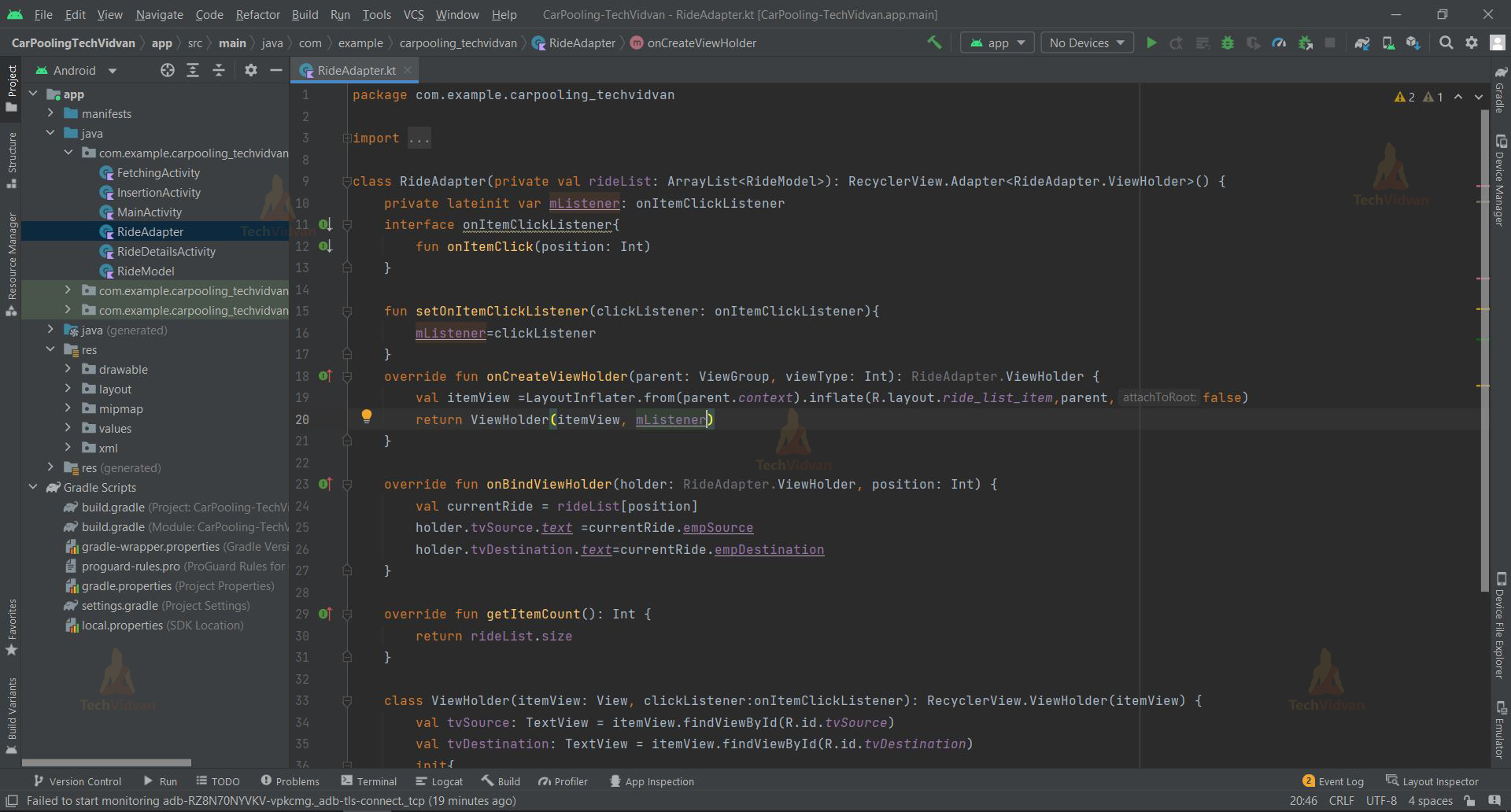
5. “FetchingActivity” is a kotlin line which is responsible for displaying the source and destination of every ride in the database by fetching the data.
class FetchingActivity : AppCompatActivity() {
    private lateinit var rideRecyclerView: RecyclerView
    private lateinit var tvLoadingData: TextView
    private lateinit var rideList: ArrayList<RideModel>
    private lateinit var dbRef: DatabaseReference
    override fun onCreate(savedInstanceState: Bundle?) {
        super.onCreate(savedInstanceState)
        setContentView(R.layout.activity_fetching)

        rideRecyclerView = findViewById(R.id.rvRide)
        rideRecyclerView.layoutManager = LinearLayoutManager(this)
        rideRecyclerView.hasFixedSize()
        tvLoadingData = findViewById(R.id.tvLoadingData)

        rideList = arrayListOf<RideModel>()

        getRideData()


    }

    private fun getRideData() {
        rideRecyclerView.visibility = View.GONE
        tvLoadingData.visibility = View.VISIBLE

        dbRef = FirebaseDatabase.getInstance().getReference("Rides")

        dbRef.addValueEventListener(object :ValueEventListener{
            override fun onDataChange(snapshot: DataSnapshot) {
                rideList.clear()
                if(snapshot.exists()){
                    for(rideSnap in snapshot.children){
                        val rideData = rideSnap.getValue(RideModel::class.java)
                        rideList.add(rideData!!)
                    }
                    val mAdapter = RideAdapter(rideList)
                    rideRecyclerView.adapter = mAdapter

                    mAdapter.setOnItemClickListener(object : RideAdapter.onItemClickListener{
                        override fun onItemClick(position: Int) {
                            val intent = Intent(this@FetchingActivity, RideDetailsActivity::class.java)
                            intent.putExtra("name",rideList[position].empName)
                            intent.putExtra("source",rideList[position].empSource)
                            intent.putExtra("destination",rideList[position].empDestination)
                            intent.putExtra("total",rideList[position].empTotalPassenger)
                            intent.putExtra("price",rideList[position].empPrice)
                            intent.putExtra("contact",rideList[position].empContact)
                            intent.putExtra("date",rideList[position].empDate)
                            intent.putExtra("time",rideList[position].empTime)
                            startActivity(intent)
                        }

                    })
                    rideRecyclerView.visibility = View.VISIBLE
                    tvLoadingData.visibility = View.GONE
                }
            }

            override fun onCancelled(error: DatabaseError) {
                TODO("Not yet implemented")
            }

        })
    }
}

6. “RideDetailsActivity” is a kotlin line which is responsible for displaying the details for the selected source and destination in the format specified by the xml file.
class RideDetailsActivity : AppCompatActivity() {
    private lateinit var tvName: TextView
    private lateinit var tvSource: TextView
    private lateinit var tvDestination: TextView
    private lateinit var tvTotal: TextView
    private lateinit var tvPrice: TextView
    private lateinit var tvContact: TextView
    private lateinit var tvDate: TextView
    private lateinit var tvTime: TextView
    override fun onCreate(savedInstanceState: Bundle?) {
        super.onCreate(savedInstanceState)
        setContentView(R.layout.activity_ride_details)
        initView()
        setValuesToViews()
    }

    private fun initView() {
        tvName = findViewById(R.id.tvName)
        tvSource = findViewById(R.id.tvSource)
        tvDestination = findViewById(R.id.tvDestination)
        tvTotal = findViewById(R.id.tvTotal)
        tvPrice = findViewById(R.id.tvPrice)
        tvContact = findViewById(R.id.tvContact)
        tvDate = findViewById(R.id.tvDate)
        tvTime = findViewById(R.id.tvTime)
    }

    private fun setValuesToViews() {
        tvName.text = intent.getStringExtra("name")
        tvSource.text = intent.getStringExtra("source")
        tvDestination.text = intent.getStringExtra("destination")
        tvTotal.text = intent.getStringExtra("total")
        tvPrice.text = intent.getStringExtra("price")
        tvContact.text = intent.getStringExtra("contact")
        tvDate.text = intent.getStringExtra("date")
        tvTime.text = intent.getStringExtra("time")
    }
}

Android Car-pooling App Output
1. Home Screen
2. Add a new ride.


3. Saving the newly added ride

4. New ride details in the database.

5. Fetching Details.

6. Getting details of the selected ride.

Summary
So in this project, we have learned how to create and develop a car-pooling app in android studio. This project is highly beneficial for beginners since it familiarizes users with utilizing XML to create user interfaces, switching between activities by clicking a button, using firebase as a database, especially when inserting data into the database or fetching data from it. We sincerely hope you enjoyed it, and we are sure you will enjoy implementing it into reality.