
Android Project – Smart Women Safety Application
We will try to make a Smart Women Safety Application using Android. This project will explain how to integrate basic security features into a user-friendly Android application to help ensure the safety of women.
About Android Smart Women Safety Application
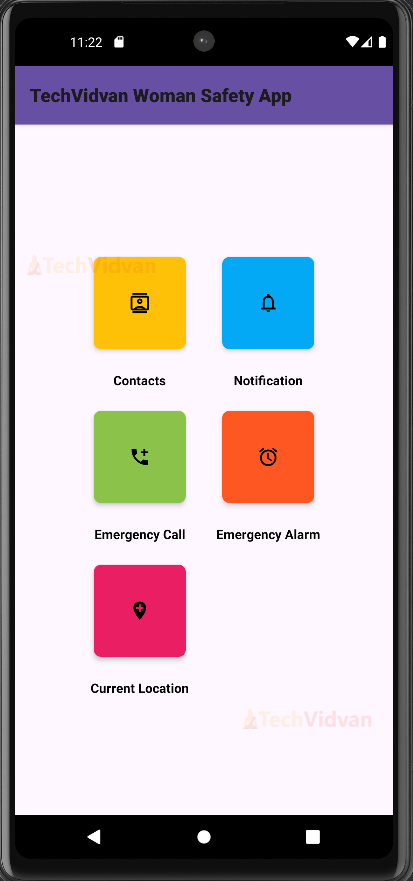
The Smart Women Safety Application will be used to provide women with quick tools to enhance their safety and provide access to emergency services. It helps users by offering features like emergency contact alerts and location tracking. It also includes an SOS Button, which can help them in immediate help situations.
Features
- Emergency Alerts: Users can send quick emergency alerts to emergency contacts.
- Location Tracking: Users can share their live location with trusted contacts.
- Emergency Call: Users can also start a phone call to their emergency contact with just a click
- SOS Button: An easily accessible SOS button for immediate help.
Prerequisites for Android Smart Women Safety Application
Let’s discuss the prerequisites required for this project. This project was made using Java and XML in Android Studio. You should know the basics of these:
1. Android Studio
2. XML Designing and Resource Files
3. Java
4. Location Services and GPS
5. Object-Oriented Concepts
6. Firebase
Download Android Smart Women Safety Application
Please download the source code of the Android Smart Women Safety Application: Android Smart Women Safety Application
Steps to implement the Project
To run the application on your device, you need to follow these steps :
1. Download the source code of the Smart Women Safety Application. Now, locate the file on your system and unzip it.
2. Open Android Studio and click on Open an Existing Project.
3. The Project will be opened in Android Studio, and you will be able to see the files mentioned above.
4. Make sure to check the versions mentioned in the build.gradle file and those which are present in your System.
5. Run the App now. It will install the application on your emulator or device.
Step-by-Step Code Explanation of Android Smart Women Safety Application
1. MainActivity.java
package com.example.smartwomensafetyapplication;

import android.Manifest;
import android.content.Intent;
import android.content.pm.PackageManager;
import android.location.Location;
import android.media.AudioManager;
import android.media.MediaPlayer;
import android.net.Uri;
import android.os.Bundle;
import android.telephony.SmsManager;
import android.view.Menu;
import android.view.MenuInflater;
import android.view.View;
import android.widget.Toast;

import androidx.appcompat.app.AppCompatActivity;
import androidx.appcompat.widget.Toolbar;
import androidx.cardview.widget.CardView;
import androidx.core.app.ActivityCompat;
import androidx.core.content.ContextCompat;

import com.google.android.gms.location.FusedLocationProviderClient;
import com.google.android.gms.location.LocationServices;
import com.google.android.gms.tasks.OnCompleteListener;
import com.google.android.gms.tasks.Task;
import com.google.firebase.FirebaseApp;
import com.google.firebase.firestore.CollectionReference;
import com.google.firebase.firestore.FirebaseFirestore;
import com.google.firebase.firestore.QueryDocumentSnapshot;

public class MainActivity extends AppCompatActivity {

   private static final int SMS_PERMISSION_CODE = 101;
   private static final int CALL_PERMISSION_CODE = 102;
   private static final int LOCATION_PERMISSION_CODE = 103;
   private FirebaseFirestore db;
   private FusedLocationProviderClient fusedLocationClient;

   @Override
   protected void onCreate(Bundle savedInstanceState) {
       super.onCreate(savedInstanceState);
       FirebaseApp.initializeApp(this); // Initialize Firebase
       setContentView(R.layout.activity_main);

       if (ContextCompat.checkSelfPermission(this, Manifest.permission.SEND_SMS) != PackageManager.PERMISSION_GRANTED) {
           ActivityCompat.requestPermissions(this, new String[]{Manifest.permission.SEND_SMS}, SMS_PERMISSION_CODE);
       }

       if (ContextCompat.checkSelfPermission(this, Manifest.permission.CALL_PHONE) != PackageManager.PERMISSION_GRANTED) {
           ActivityCompat.requestPermissions(this, new String[]{Manifest.permission.CALL_PHONE}, CALL_PERMISSION_CODE);
       }

       if (ContextCompat.checkSelfPermission(this, Manifest.permission.ACCESS_FINE_LOCATION) != PackageManager.PERMISSION_GRANTED) {
           ActivityCompat.requestPermissions(this, new String[]{Manifest.permission.ACCESS_FINE_LOCATION}, LOCATION_PERMISSION_CODE);
       }

       Toolbar toolbar = findViewById(R.id.toolbar);
       setSupportActionBar(toolbar);
       getSupportActionBar().setTitle("TechVidvan Woman Safety App");

       db = FirebaseFirestore.getInstance();
       fusedLocationClient = LocationServices.getFusedLocationProviderClient(this);

       CardView contactsCard = findViewById(R.id.contacts_card);
       contactsCard.setOnClickListener(new View.OnClickListener() {
           @Override
           public void onClick(View v) {
               Intent intent = new Intent(MainActivity.this, ContactsActivity.class);
               startActivity(intent);
           }
       });

       CardView notificationCard = findViewById(R.id.notification_card);
       notificationCard.setOnClickListener(new View.OnClickListener() {
           @Override
           public void onClick(View v) {
               sendEmergencyMessage();
           }
       });

       CardView emergencyCallCard = findViewById(R.id.emergency_call_card);
       emergencyCallCard.setOnClickListener(new View.OnClickListener() {
           @Override
           public void onClick(View v) {
               makeEmergencyCall();
           }
       });

       CardView emergencyAlarmCard = findViewById(R.id.emergency_alarm_card);
       emergencyAlarmCard.setOnClickListener(new View.OnClickListener() {
           @Override
           public void onClick(View v) {
               playBuzzerSound();
           }
       });

       CardView currentLocationCard = findViewById(R.id.current_location_card);
       currentLocationCard.setOnClickListener(new View.OnClickListener() {
           @Override
           public void onClick(View v) {
               sendCurrentLocation();
           }
       });
   }

   private void sendEmergencyMessage() {
       CollectionReference contactsRef = db.collection("contacts");
       contactsRef.get().addOnCompleteListener(task -> {
           if (task.isSuccessful() && !task.getResult().isEmpty()) {
               for (QueryDocumentSnapshot document : task.getResult()) {
                   String phoneNumber = document.getString("phoneNumber");
                   sendSms(phoneNumber, "I am in danger! Please help me.");
               }
               Toast.makeText(MainActivity.this, "Emergency message sent.", Toast.LENGTH_SHORT).show();
           } else {
               Toast.makeText(MainActivity.this, "No emergency contacts found.", Toast.LENGTH_SHORT).show();
           }
       });
   }

   private void sendSms(String phoneNumber, String message) {
       try {
           SmsManager smsManager = SmsManager.getDefault();
           smsManager.sendTextMessage(phoneNumber, null, message, null, null);
           Toast.makeText(MainActivity.this, "SMS sent to " + phoneNumber, Toast.LENGTH_LONG).show();
       } catch (Exception e) {
           Toast.makeText(MainActivity.this, "SMS failed, please try again later.", Toast.LENGTH_LONG).show();
           e.printStackTrace();
       }
   }

   private void makeEmergencyCall() {
       CollectionReference contactsRef = db.collection("contacts");
       contactsRef.get().addOnCompleteListener(task -> {
           if (task.isSuccessful() && !task.getResult().isEmpty()) {
               QueryDocumentSnapshot topContact = (QueryDocumentSnapshot) task.getResult().getDocuments().get(0);
               String phoneNumber = topContact.getString("phoneNumber");
               if (ContextCompat.checkSelfPermission(MainActivity.this, Manifest.permission.CALL_PHONE) == PackageManager.PERMISSION_GRANTED) {
                   initiateCall(phoneNumber);
               } else {
                   ActivityCompat.requestPermissions(MainActivity.this, new String[]{Manifest.permission.CALL_PHONE}, CALL_PERMISSION_CODE);
               }
           } else {
               Toast.makeText(MainActivity.this, "No emergency contacts found.", Toast.LENGTH_SHORT).show();
           }
       });
   }

   private void initiateCall(String phoneNumber) {
       Intent callIntent = new Intent(Intent.ACTION_CALL);
       callIntent.setData(Uri.parse("tel:" + phoneNumber));
       try {
           startActivity(callIntent);
       } catch (Exception e) {
           Toast.makeText(MainActivity.this, "Call failed, please try again later.", Toast.LENGTH_LONG).show();
           e.printStackTrace();
       }
   }

   private void playBuzzerSound() {
       AudioManager audioManager = (AudioManager) getSystemService(AUDIO_SERVICE);
       audioManager.setStreamVolume(AudioManager.STREAM_MUSIC, audioManager.getStreamMaxVolume(AudioManager.STREAM_MUSIC), 0);
       MediaPlayer mediaPlayer = MediaPlayer.create(this, R.raw.alarm_sound);
       mediaPlayer.start();
       mediaPlayer.setOnCompletionListener(mp -> mp.release());
   }

   private void sendCurrentLocation() {
       if (ContextCompat.checkSelfPermission(this, Manifest.permission.ACCESS_FINE_LOCATION) == PackageManager.PERMISSION_GRANTED) {
           fusedLocationClient.getLastLocation().addOnCompleteListener(new OnCompleteListener<Location>() {
               @Override
               public void onComplete(Task<Location> task) {
                   if (task.isSuccessful() && task.getResult() != null) {
                       Location location = task.getResult();
                       String message = "I am in danger! My current location is: https://www.google.com/maps?q=" + location.getLatitude() + "," + location.getLongitude();
                       sendLocationSms(message);
                   } else {
                       Toast.makeText(MainActivity.this, "Failed to get location.", Toast.LENGTH_SHORT).show();
                   }
               }
           });
       } else {
           ActivityCompat.requestPermissions(this, new String[]{Manifest.permission.ACCESS_FINE_LOCATION}, LOCATION_PERMISSION_CODE);
       }
   }

   private void sendLocationSms(String message) {
       CollectionReference contactsRef = db.collection("contacts");
       contactsRef.get().addOnCompleteListener(task -> {
           if (task.isSuccessful() && !task.getResult().isEmpty()) {
               for (QueryDocumentSnapshot document : task.getResult()) {
                   String phoneNumber = document.getString("phoneNumber");
                   sendSms(phoneNumber, message);
               }
               Toast.makeText(MainActivity.this, "Location sent to emergency contacts.", Toast.LENGTH_SHORT).show();
           } else {
               Toast.makeText(MainActivity.this, "No emergency contacts found.", Toast.LENGTH_SHORT).show();
           }
       });
   }

   @Override
   public void onRequestPermissionsResult(int requestCode, String[] permissions, int[] grantResults) {
       super.onRequestPermissionsResult(requestCode, permissions, grantResults);
       if (requestCode == SMS_PERMISSION_CODE) {
           if (grantResults.length > 0 && grantResults[0] == PackageManager.PERMISSION_GRANTED) {
               Toast.makeText(this, "SMS permission granted", Toast.LENGTH_SHORT).show();
           } else {
               Toast.makeText(this, "SMS permission denied", Toast.LENGTH_SHORT).show();
           }
       } else if (requestCode == CALL_PERMISSION_CODE) {
           if (grantResults.length > 0 && grantResults[0] == PackageManager.PERMISSION_GRANTED) {
               Toast.makeText(this, "Call permission granted", Toast.LENGTH_SHORT).show();
           } else {
               Toast.makeText(this, "Call permission denied", Toast.LENGTH_SHORT).show();
           }
       } else if (requestCode == LOCATION_PERMISSION_CODE) {
           if (grantResults.length > 0 && grantResults[0] == PackageManager.PERMISSION_GRANTED) {
               Toast.makeText(this, "Location permission granted", Toast.LENGTH_SHORT).show();
           } else {
               Toast.makeText(this, "Location permission denied", Toast.LENGTH_SHORT).show();
           }
       }
   }
}
Explanation:
- Import the necessary Android libraries and Firebase libraries. Define MainActivity and declare the constants to request permissions for sending SMS, making calls, and accessing location.
- We declare two variables, which are used to reference Firebase Firestore and the FusedLocationProviderClient for location services. OnCreate() initializes the activity, sets the layout, and initializes Firebase.
- After that, we check for necessary permissions and request them if not already granted. The toolbar is used to set the app Action Bar, and then we initialise the variables.
- We declare CardView for contacts, notifications, emergency calls, emergency alarms, and currentLocation, set them with setOnClickListener(), and navigate to their respective Activities on Click.
- sendEmergencyMessage() retrieves emergency contacts using contactsRef from Firebase and sends an SMS to each contact with an emergency message.
- sendSms() sends an SMS to the given phone number with the provided message. makeEmergencyCall() fetches the top emergency contact from Firebase and initiates a call to that contact.
- We use initiateCall() to start a call to the emergency phone number. playBuzzerSound() plays a buzzer sound at maximum volume.
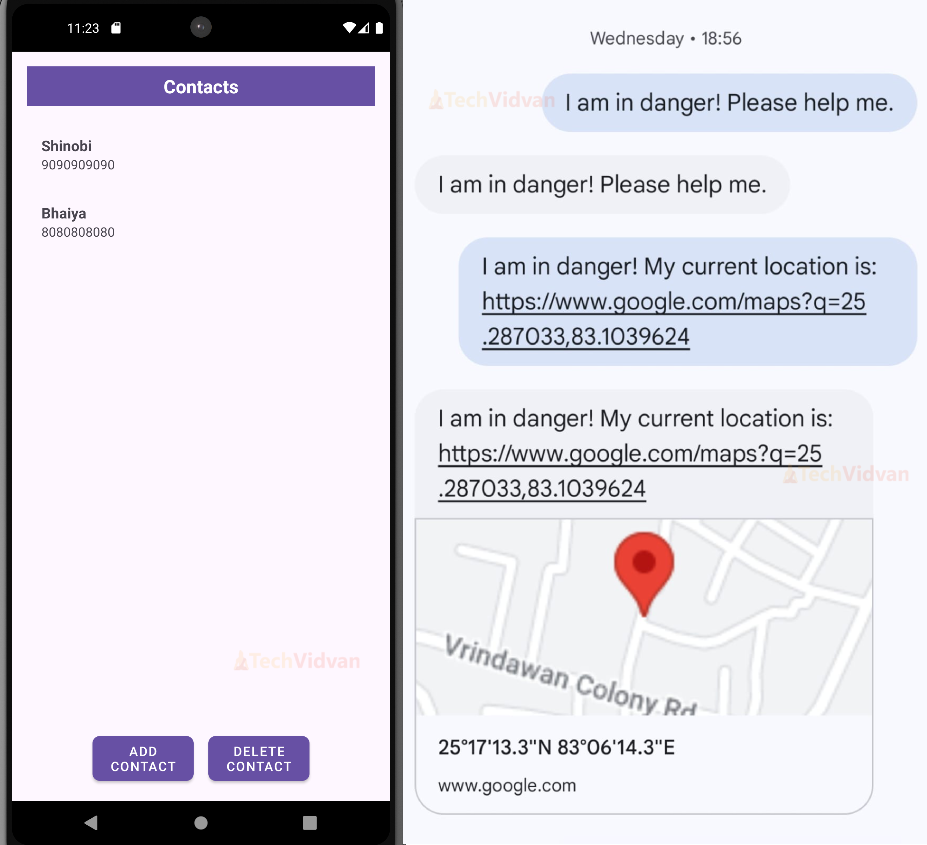
- sendCurrentLocation() is used to fetch the user’s current location and send it to emergency contacts via SMS. sendLocationSms method sends the location SMS to emergency contacts fetched from Firebase.
- onRequestPermissionsResult() handles the result of permission requests, whether permissions were granted or denied, and displays the messages.
2. ContactsActivity.java
package com.example.smartwomensafetyapplication;

import android.content.Intent;
import android.os.Bundle;
import android.view.View;
import android.widget.Toast;
import androidx.appcompat.app.AppCompatActivity;
import androidx.recyclerview.widget.LinearLayoutManager;
import androidx.recyclerview.widget.RecyclerView;
import com.google.android.material.button.MaterialButton;
import com.google.firebase.firestore.CollectionReference;
import com.google.firebase.firestore.FirebaseFirestore;
import com.google.firebase.firestore.QueryDocumentSnapshot;
import java.util.ArrayList;
import java.util.List;

public class ContactsActivity extends AppCompatActivity {
   private RecyclerView recyclerViewContacts;
   private ContactAdapter contactAdapter;
   private List<Contact> contactList;
   private FirebaseFirestore db;
   private CollectionReference contactsRef;

   @Override
   protected void onCreate(Bundle savedInstanceState) {
       super.onCreate(savedInstanceState);
       setContentView(R.layout.activity_contacts);

       db = FirebaseFirestore.getInstance();
       contactsRef = db.collection("contacts");

       recyclerViewContacts = findViewById(R.id.recycler_view_contacts);
       recyclerViewContacts.setLayoutManager(new LinearLayoutManager(this));

       contactList = new ArrayList<>();
       contactAdapter = new ContactAdapter(this, contactList);
       recyclerViewContacts.setAdapter(contactAdapter);

       loadContacts();

       MaterialButton addContactButton = findViewById(R.id.button_add_contact);
       MaterialButton deleteContactButton = findViewById(R.id.button_delete_contact);

       addContactButton.setOnClickListener(new View.OnClickListener() {
           @Override
           public void onClick(View v) {
               Intent intent = new Intent(ContactsActivity.this, AddContactActivity.class);
               startActivity(intent);
           }
       });

       deleteContactButton.setOnClickListener(new View.OnClickListener() {
           @Override
           public void onClick(View v) {
               deleteContact();
           }
       });
   }

   private void loadContacts() {
       contactsRef.get().addOnCompleteListener(task -> {
           if (task.isSuccessful()) {
               contactList.clear();
               for (QueryDocumentSnapshot document : task.getResult()) {
                   Contact contact = document.toObject(Contact.class);
                   contactList.add(contact);
               }
               contactAdapter.notifyDataSetChanged();
           } else {
               Toast.makeText(ContactsActivity.this, "Error getting contacts.", Toast.LENGTH_SHORT).show();
           }
       });
   }

   private void deleteContact() {
       // Logic for selecting and deleting a contact
       if (!contactList.isEmpty()) {
           // For simplicity, we delete the first contact in the list
           Contact contactToDelete = contactList.get(0);
           contactsRef.whereEqualTo("name", contactToDelete.getName())
                   .whereEqualTo("phoneNumber", contactToDelete.getPhoneNumber())
                   .get()
                   .addOnCompleteListener(task -> {
                       if (task.isSuccessful() && !task.getResult().isEmpty()) {
                           task.getResult().getDocuments().get(0).getReference().delete().addOnSuccessListener(aVoid -> {
                               contactList.remove(contactToDelete);
                               contactAdapter.notifyDataSetChanged();
                               Toast.makeText(ContactsActivity.this, "Contact deleted.", Toast.LENGTH_SHORT).show();
                           }).addOnFailureListener(e -> {
                               Toast.makeText(ContactsActivity.this, "Error deleting contact.", Toast.LENGTH_SHORT).show();
                           });
                       }
                   });
       }
   }

   @Override
   protected void onResume() {
       super.onResume();
       loadContacts();
   }
}
Explanation:
- Import the required Android libraries and declare the ContactsActivity class, which extends AppCompatActivity. We declare the variables that we are going to use.
- onCreate() initialises the activity, and then we initialise Firebase Firestore and reference the database. We set up the RecyclerView with a linear layout manager.
- We initialise the contact list and the adapter, then create two Material Buttons: Add Contact and Delete Contact, along with their click listeners. The addContactButton opens AddContactActivity, and the deleteContactButton calls the deleteContact().
- loadContacts() fetches contacts from Firestore, clears the current contact list, adds fetched contacts to the list and notifies the adapter to update the UI.
- deleteContact() is used to delete a contact from the database and UI. It removes the contact from the list and updates the adapter.
3. AddContactActivity.java
package com.example.smartwomensafetyapplication;

import android.os.Bundle;
import android.view.View;
import android.widget.EditText;
import android.widget.Toast;
import androidx.appcompat.app.AppCompatActivity;
import com.google.android.material.button.MaterialButton;
import com.google.firebase.firestore.FirebaseFirestore;

public class AddContactActivity extends AppCompatActivity {
   private EditText editTextName, editTextPhone;
   private FirebaseFirestore db;

   @Override
   protected void onCreate(Bundle savedInstanceState) {
       super.onCreate(savedInstanceState);
       setContentView(R.layout.activity_add_contact);

       db = FirebaseFirestore.getInstance();

       editTextName = findViewById(R.id.edit_text_name);
       editTextPhone = findViewById(R.id.edit_text_phone);
       MaterialButton buttonSave = findViewById(R.id.button_save_contact);

       buttonSave.setOnClickListener(new View.OnClickListener() {
           @Override
           public void onClick(View v) {
               saveContact();
           }
       });
   }

   private void saveContact() {
       String name = editTextName.getText().toString().trim();
       String phone = editTextPhone.getText().toString().trim();

       if (name.isEmpty() || phone.isEmpty()) {
           Toast.makeText(AddContactActivity.this, "Please enter both name and phone number.", Toast.LENGTH_SHORT).show();
           return;
       }

       Contact newContact = new Contact(name, phone);
       db.collection("contacts").add(newContact)
               .addOnSuccessListener(documentReference -> {
                   Toast.makeText(AddContactActivity.this, "Contact added successfully.", Toast.LENGTH_SHORT).show();
                   finish();
               })
               .addOnFailureListener(e -> Toast.makeText(AddContactActivity.this, "Error adding contact.", Toast.LENGTH_SHORT).show());
   }
}
Explanation:
- We import the necessary Android and Firebase libraries and declare the AddContactActivity class, which extends AppCompatActivity.
- We declare variables for EditText fields and the Firebase Firestore database. The OnCreate method initialises the activity and Firebase Firestore.
- It also initializes the EditText fields and the MaterialButton by finding them in the layout and setting setOnClickListener() on the Save button.
- saveContact method is used to save a new contact to Firestore. It reads the name and phone number from the EditText fields, creates a new Contact object, and saves it to the contacts collection in Firestore.
4. ContactAdapter.java
package com.example.smartwomensafetyapplication;

import android.content.Context;
import android.view.LayoutInflater;
import android.view.View;
import android.view.ViewGroup;
import android.widget.TextView;
import androidx.annotation.NonNull;
import androidx.recyclerview.widget.RecyclerView;
import java.util.List;

public class ContactAdapter extends RecyclerView.Adapter<ContactAdapter.ContactViewHolder> {
   private Context context;
   private List<Contact> contactList;

   public ContactAdapter(Context context, List<Contact> contactList) {
       this.context = context;
       this.contactList = contactList;
   }

   @NonNull
   @Override
   public ContactViewHolder onCreateViewHolder(@NonNull ViewGroup parent, int viewType) {
       View view = LayoutInflater.from(context).inflate(R.layout.contact_item, parent, false);
       return new ContactViewHolder(view);
   }

   @Override
   public void onBindViewHolder(@NonNull ContactViewHolder holder, int position) {
       Contact contact = contactList.get(position);
       holder.textViewName.setText(contact.getName());
       holder.textViewPhoneNumber.setText(contact.getPhoneNumber());
   }

   @Override
   public int getItemCount() {
       return contactList.size();
   }

   public static class ContactViewHolder extends RecyclerView.ViewHolder {
       TextView textViewName;
       TextView textViewPhoneNumber;

       public ContactViewHolder(@NonNull View itemView) {
           super(itemView);
           textViewName = itemView.findViewById(R.id.text_view_name);
           textViewPhoneNumber = itemView.findViewById(R.id.text_view_phone_number);
       }
   }
}
Explanation:
- Import the required Android libraries and define the ContactAdapter class, which is a custom adapter for displaying a list of Contact objects in a RecyclerView. Adapter binds the contact data to the RecyclerView items.
- We define a context and a list, and then initialise them with the help of a constructor.onCreateViewHolder() is called when the RecyclerView needs a new ContactViewHolder to represent an item.
- onBindViewHolder() is used to display the data at the specified position. It creates the Contact object at a given position and then sets the name and phone number.
- getItemCount() counts the total number of items in the contactList, and ContactViewHolder() holds the views for each item in the RecyclerView.
Android Smart Women’s Safety Application Output
Conclusion
We have successfully implemented our TechVidvan Smart Women Safety Application using Java and XML. We have discussed the project details, prerequisites, and code implementation. We have used Firebase Database for its simple features for backend services. You can also implement the feature to locate nearby Police Stations in the Application.
I hope you liked this project. Thank You.